Tag: iOS

  • A Slice Of Sri Lanka For Your Mobile Phone

    A Slice Of Sri Lanka For Your Mobile Phone

    Image asset

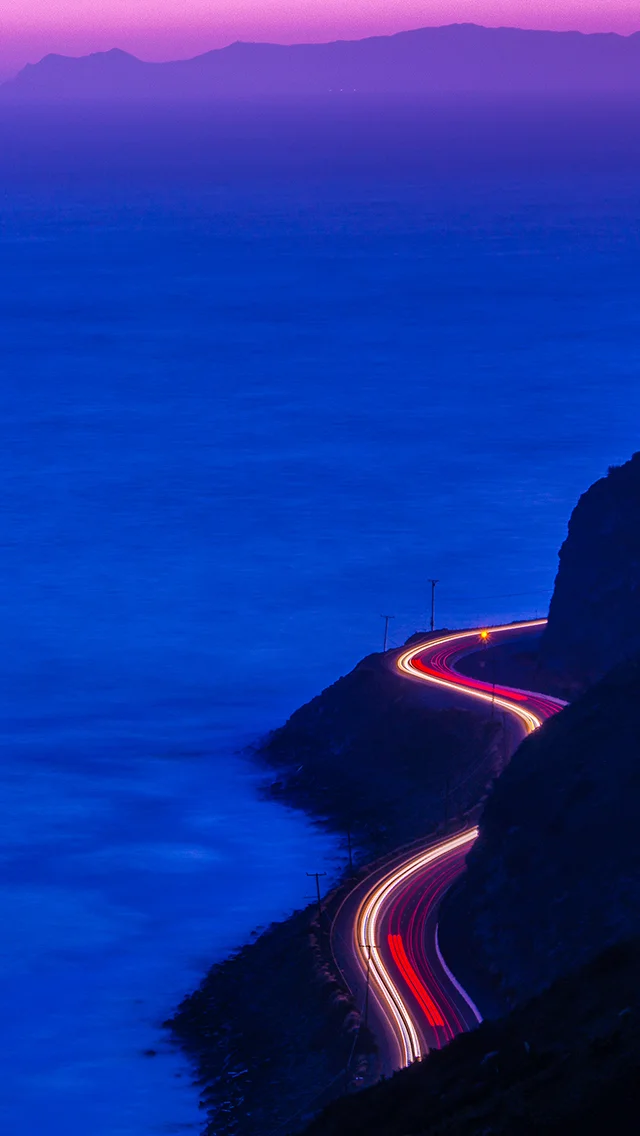
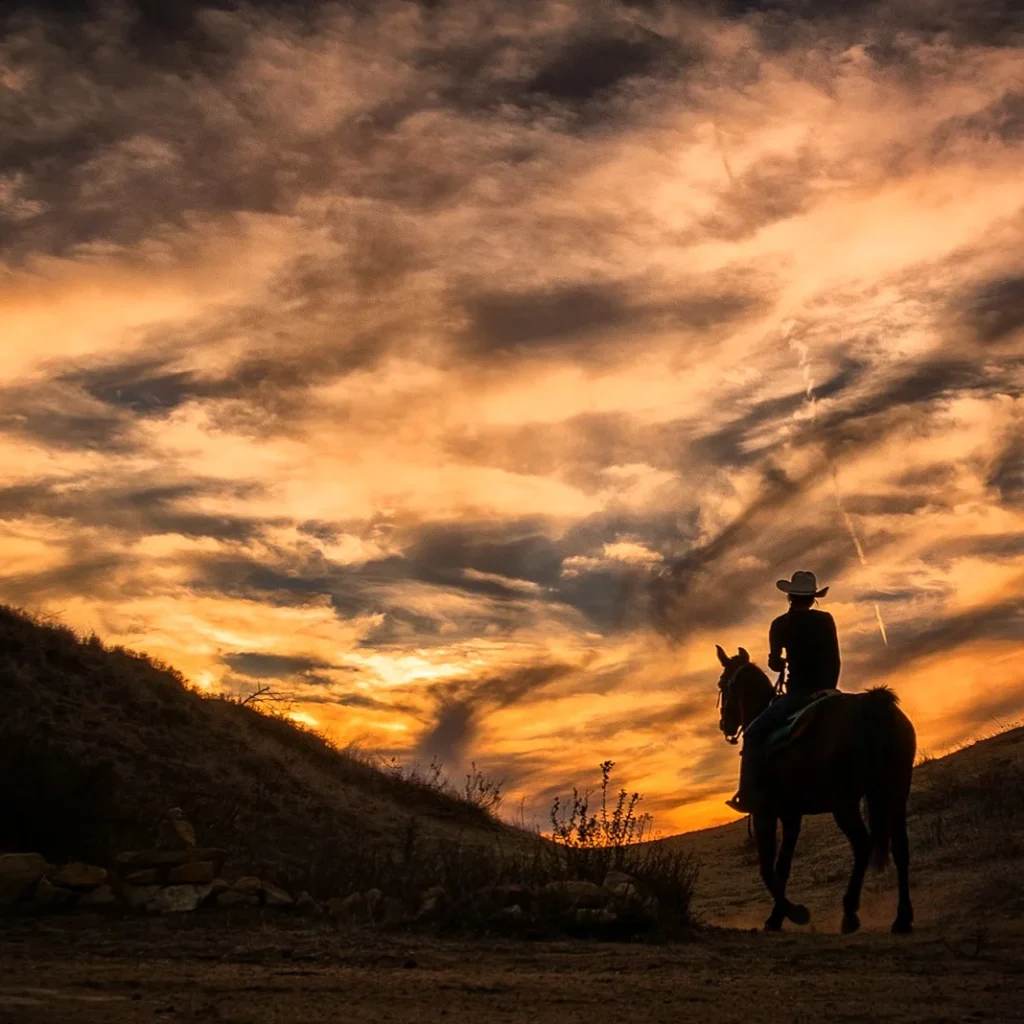
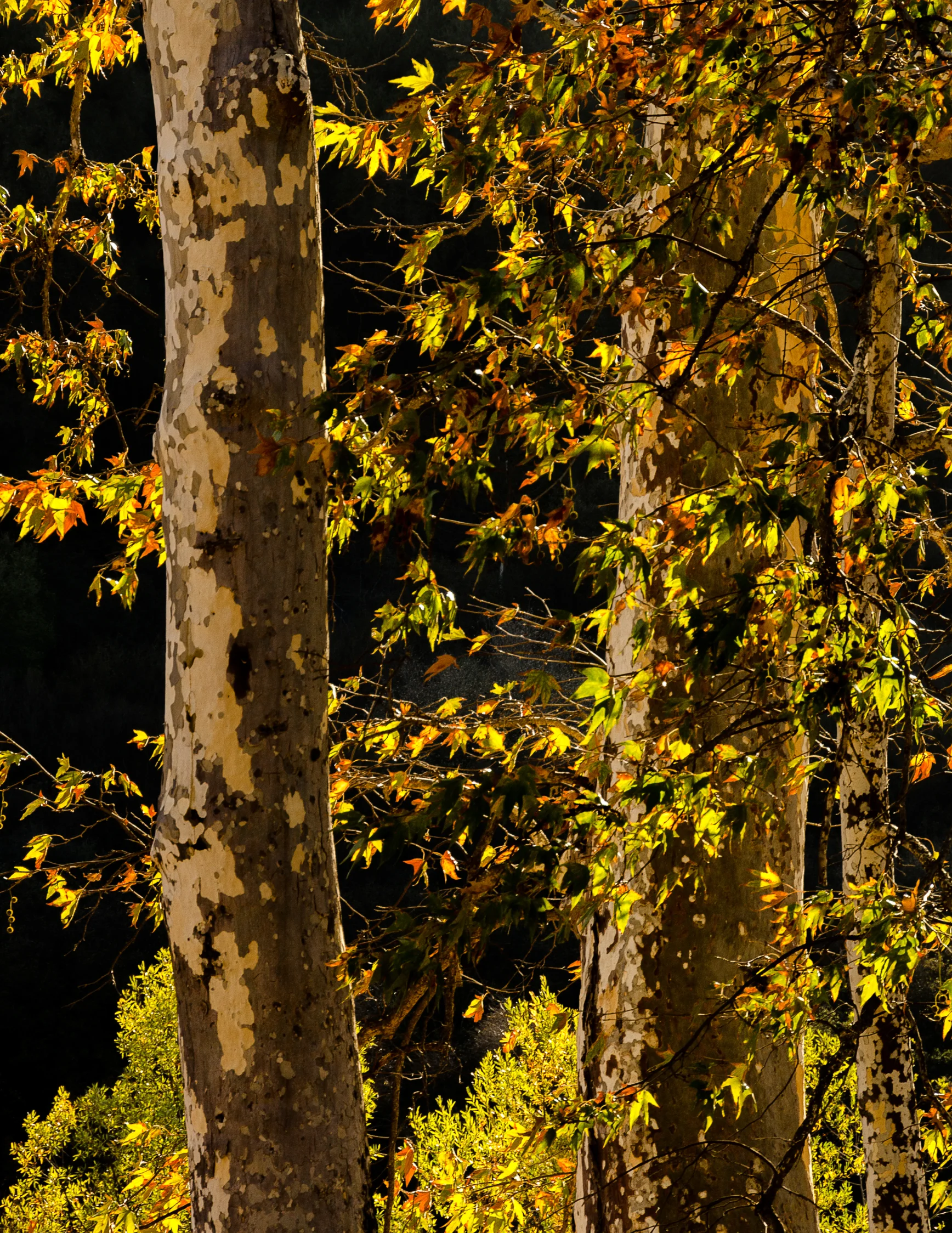
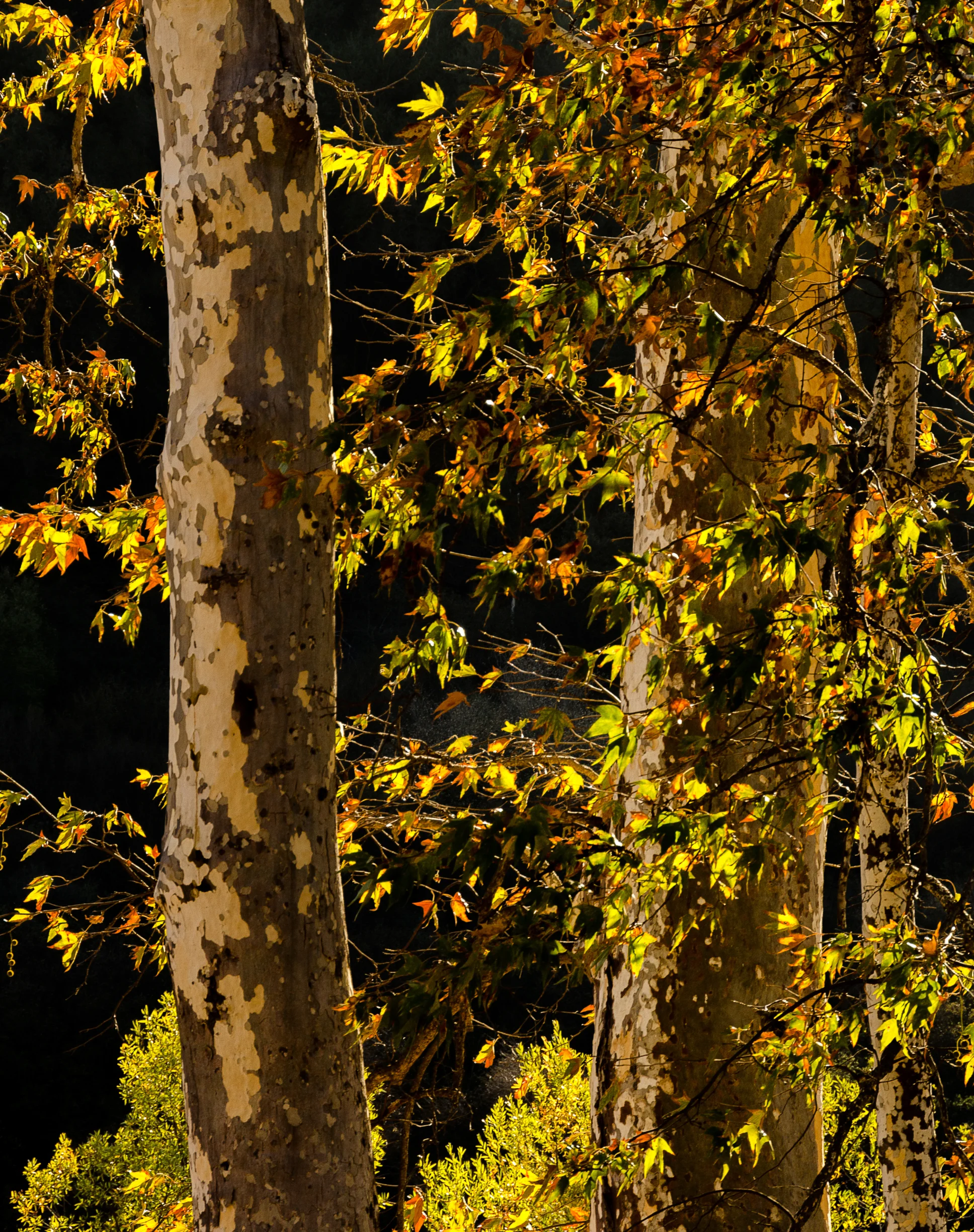
    So I just threw one of the images I made in Sri Lanka on my mobile phone as the background. Kinda dug it. Figured I’d share it. If you want the thing, click here to download a high resolution 2400-pixel version that should fit any phone or tablet you so feel fit.
    This was shot on a Samsung NX1 as the sun was setting behind the Temple of the Tooth in Kandy, Sri Lanka last month. The temple houses the relic of the tooth of Buddha. “Since ancient times, the relic has played an important role in local politics because it is believed that whoever holds the relic holds the governance of the country. Kandy was the last capital of the Sri Lankan kings and is a UNESCOworld heritage site mainly due to the temple.” [via Wikipedia]

    If you missed yesterday’s post, I began with the back story of how and why I found myself in Sri Lanka. Here’s the link:

    3 Weeks In Sri Lanka – Part 1: The Most Meaningful Work I’ve Ever Done.

    And for more stuffymajigathings:
    Instagram: @wasimofnazareth
    Ello: @wasimofnazareth
    Google+: +WasimMuklashy

  • What Apple iOS 8 Manual Camera Controls Means For The Masses

    What Apple iOS 8 Manual Camera Controls Means For The Masses

    iphone-ios8-manual-camera-controls-api

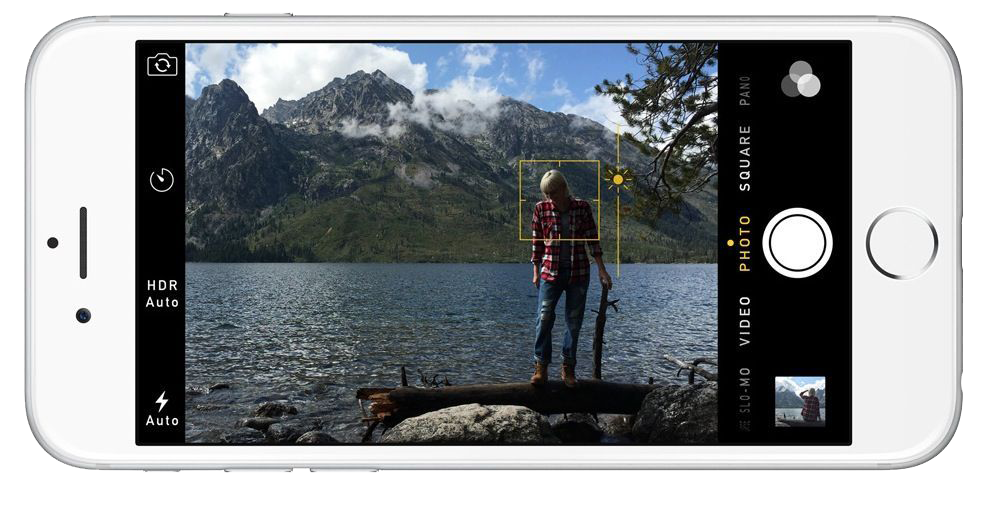
    So as we already know, Apple has opened up it’s manual camera controls for developers and users in it’s new iOS 8. What this means for pro photographers is that they can finally take charge of their images similar to the way that they’re used to with their professional gear. What this means for amateur photographers and those who use their iPhone to snap their lives’ memories, is that they’re going to be insanely confused at first and wonder what the hell it all means and why can’t they just point and click like they were used to. But then, as they start to play with it all, they’ll realize they’re getting better images, and start to wonder why. So, to minimize that time between ‘wtf’ and ‘oh wow,’ here is a quick breakdown of the Apple iOS 8 manual camera controls that developers will have access to – what it all means and what it all does:

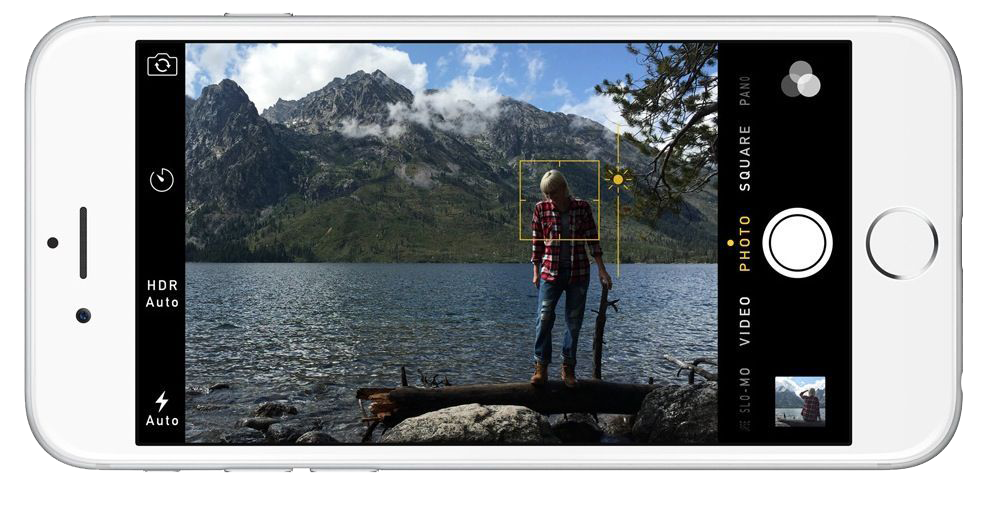
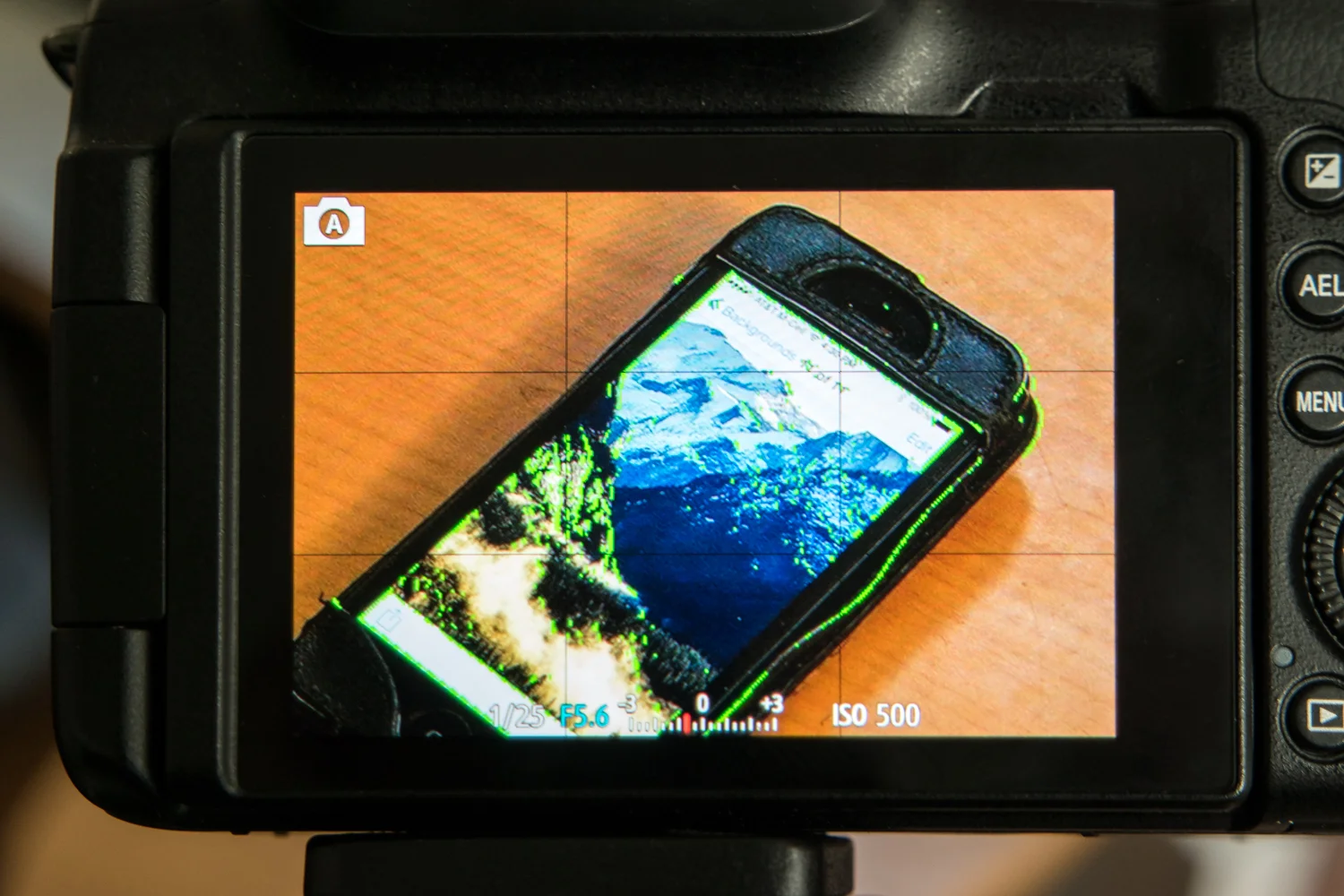
    Manual Focus – As anyone that has used one knows, iPhones already provide a great and mostly accurate focusing system. Chances are, your shot will focus where you want it to and it’ll look great. But sometimes, having that extra control over focus is what can add that extra punch to an image. For example, if you want to have the entire photo blurry for artsy purposes, you’ll need manual focus. If you want to focus on a detail that’s too small for the camera to pick up on, you’ll need manual focus. Apple finally provides that control with iOS 8. The fact that focus peaking is part of it is a HUGE plus. Basically, the screen will show colored pixels on the part that is in focus so you know you’re getting exactly what you want in focus.

    Wasim Muklashy Photography_Focus Peaking Sample_iOS 8_-SAM_0980

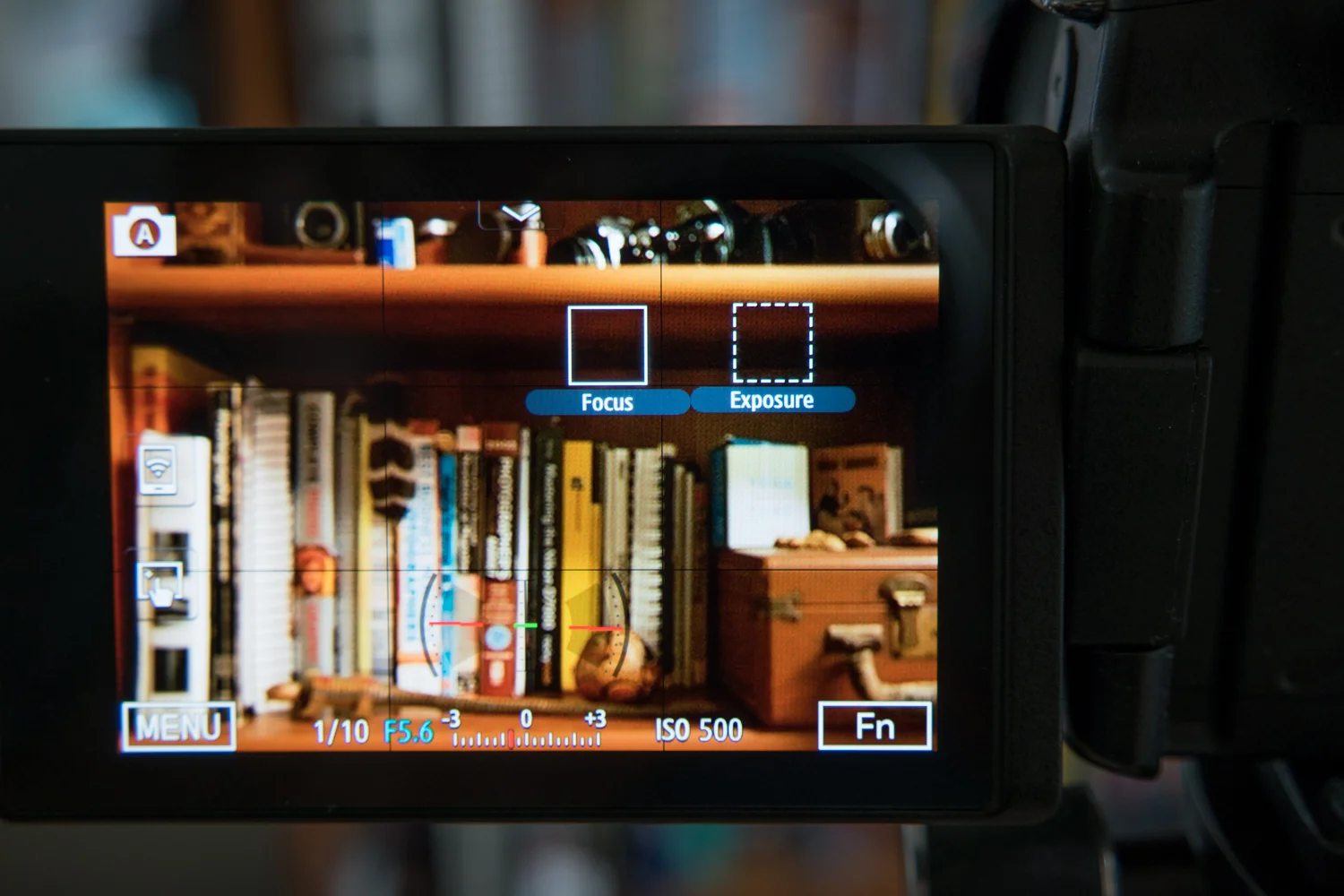
    Manual Exposure –  So as you compose your shot, you can now manually expose by sliding your finger up or down to increase or decrease exposure/brightness. Again, the camera does a great job already, but sometimes you want things brighter or darker, or you want to expose for a certain part of the scene while focusing on another. With iOS 8, you now have that control as well, putting you in charge of exactly what your image will look like, not what Apple thinks your image should look like.

    Wasim Muklashy Photography_Focus Exposure Sample_iPhone 6_iOS 8

    Exposure Compensation – Most professional photographers live by Exposure Compensation. It’s why that little button lies so close to the top of the camera body for easy access on just about every single SLR or DSLR model available. Basically, instead of having to get too deep in the manual settings, if you need the scene just a bit brighter or darker, you can use exposure compensation to slightly make up for how you’d like the image to turn out by nudging it brighter or darker. It’s measured in ‘f-stops’, so basically, if you go up +1, it’ll double the brightness, if you go -1, it’ll halve the brightness.

    ISO – This stands for International Standards Organization. You don’t need to know that. All you need to know is that when you increase the ISO, it increases the light sensitivity on the sensor, meaning, the higher the ISO number, the more light will be exposed to the sensor. Essentially, you can take pictures in lower light using a higher ISO. This also means that the shutter will fire faster, meaning, less time for a moving subject to be blurry, increasing the chance of capturing a sharp image. The trade-off is that, the higher the ISO, the more noise will show up in your images, basically, making them more grainy. However, by having this control manually, you’ll get the option to choose whether or not getting that shot in the bar is truly worth a bit of grain, versus not getting that shot at all.

    Shutter Speed – Plainly put, shutter speed is exactly that…how fast the shutter fires, or, how much time it stays open to let light onto the sensor (take a picture). Some of those applications could range from long-shutter exposures to get that milky water or car-light-stream effects. Up until now, you had to rely on the camera deciding what is the best shutter speed to get a proper exposure for the image you’re capturing, allowing little to creativity and experimentation with slow or fast shutter speeds. With Apple extending the API to include control over shutter speed, third party apps will have an easier task in allowing you to control this critical element of a photographic exposure. Provided you have a tripod, or some method to stabilize the iPhone (since anything slower that 1/60 of a second shutter speed will likely introduce some blur if handheld), you’ll soon be able to get those milky water and car streamy lighty shots on your phone.

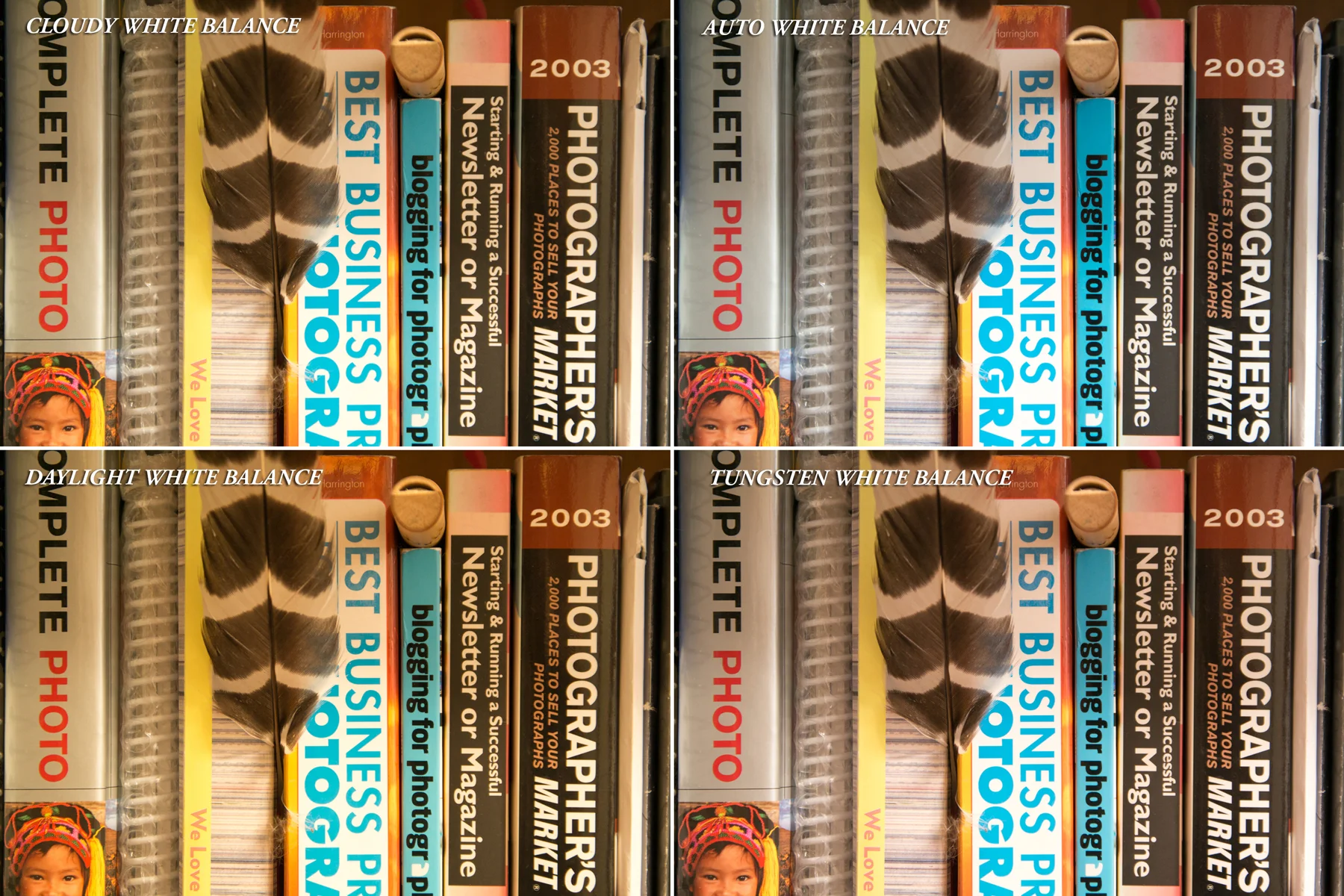
    White Balance – Professional photographers have been fussing over white balance for as long as photography has existed. And now, iOS 8 users who aren’t familiar with the professional world, will find out why for themselves. While cameras have been becoming increasingly better at determining what true white point in an image is in order to give proper color to the rest of the image, they’re still not perfect. And with manual control over white balance, you can determine what sort of setting you’re shooting in, and modify and adjust white balance to make sure the whites are white and the other colors in the image follow suit.

    Wasim-Muklashy-Photography_White-Balance-Sample_iPhone 6_iOS-8

    The best part of all this is that Apple has left the camera open to 3rd party developers as well, so we’re going to start seeing some features that have existed in high-end DSLRs and mirror less cameras, show up on our iPhones. As a matter of fact, as of the writing of this post, ProCam has become the first app to already release a version, ProCam 2, taking advantage of much of these features.

    And to find out why all this matters, check out my take on Why Apple iOS 8 Will Create Better Photographers.

    For more of my madness: Instagram: @wasimofnazareth Twitter: @wasimofnazareth Google+: www.Google.com/+WasimMuklashy Facebook: www.Facebook.com/WasimOfNazareth

  • A Collection Of iPhone 6 And iPhone 6 Plus Background Wallpapers

    A Collection Of iPhone 6 And iPhone 6 Plus Background Wallpapers

    Wasim-Muklashy-Photography_iPhone-6-Background-Wallpaper

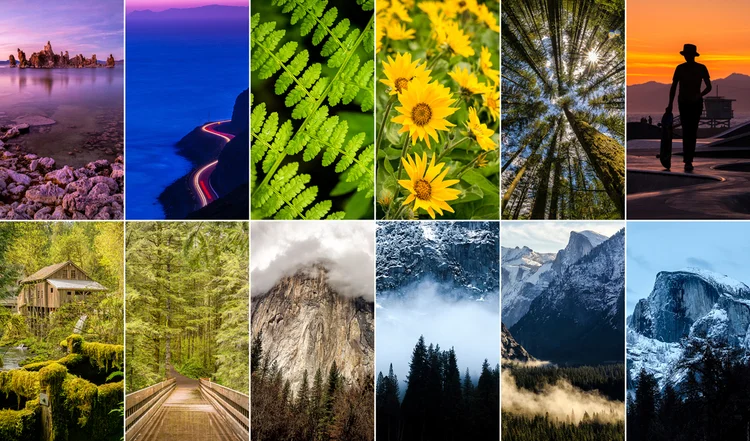
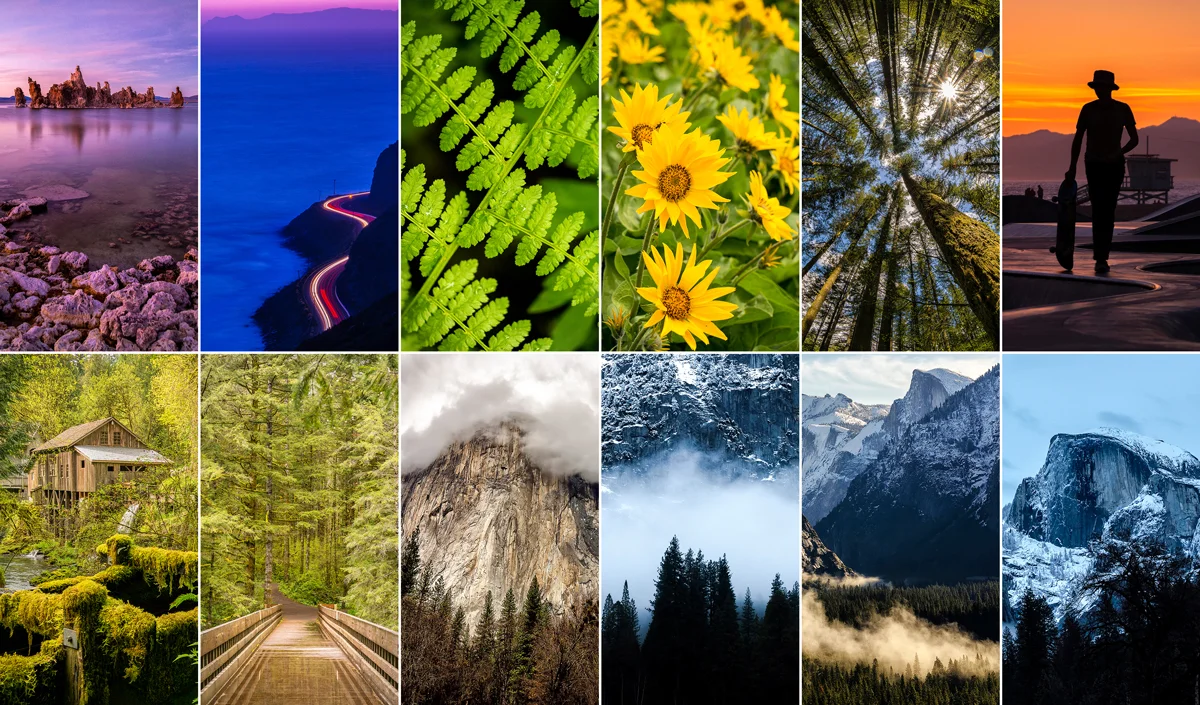
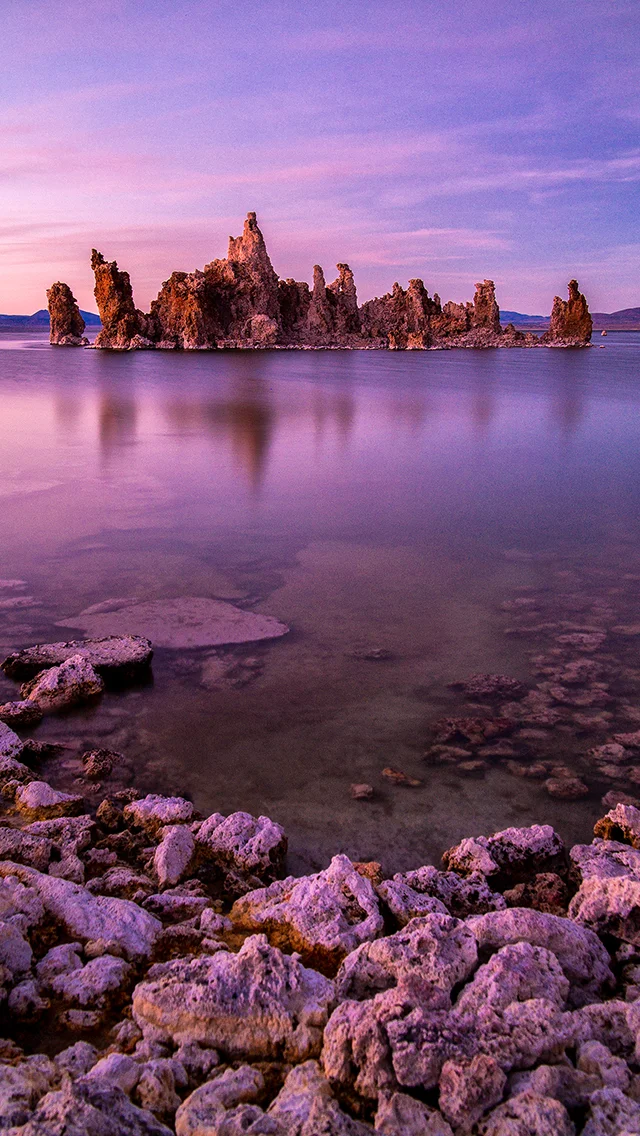
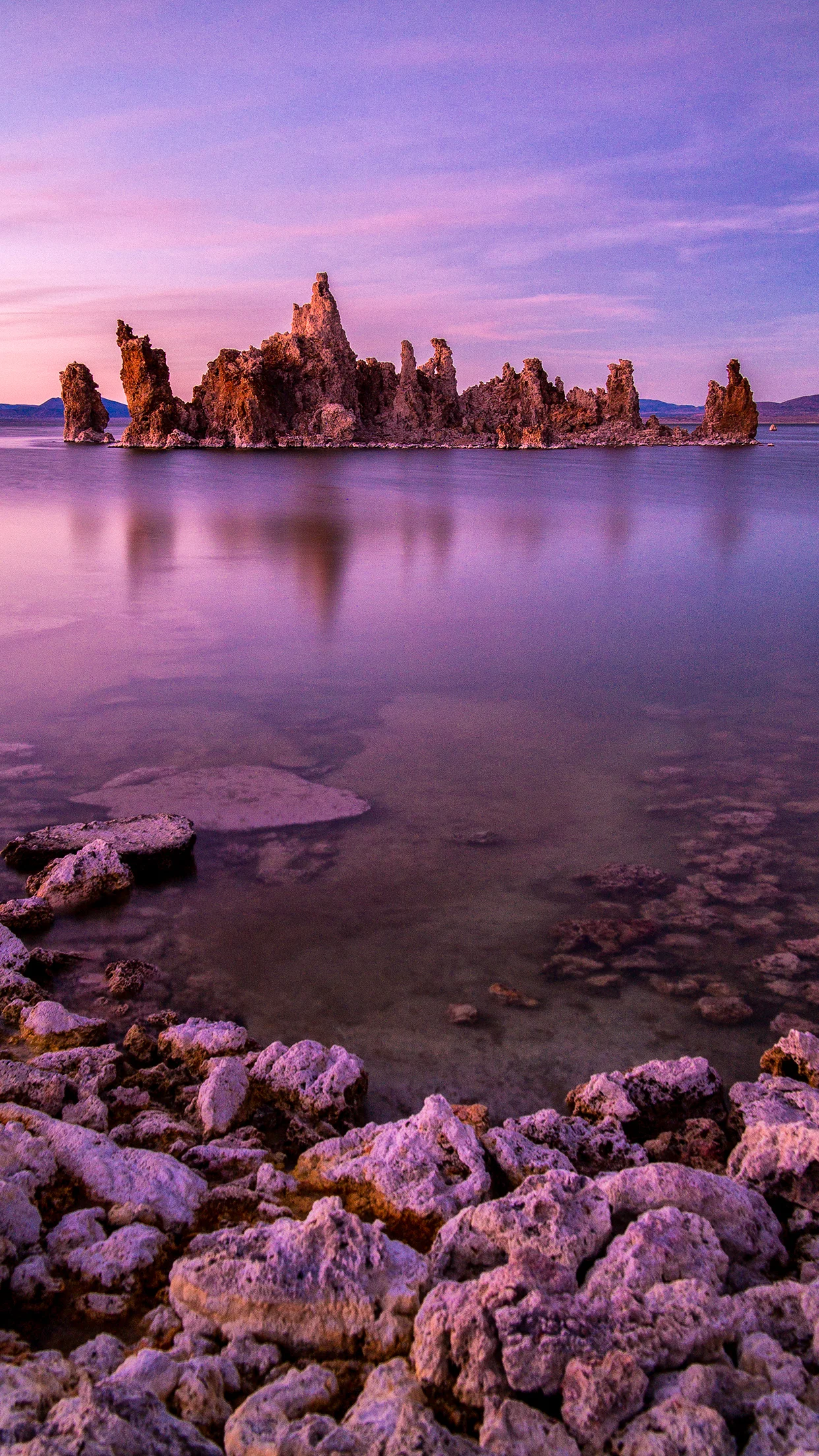
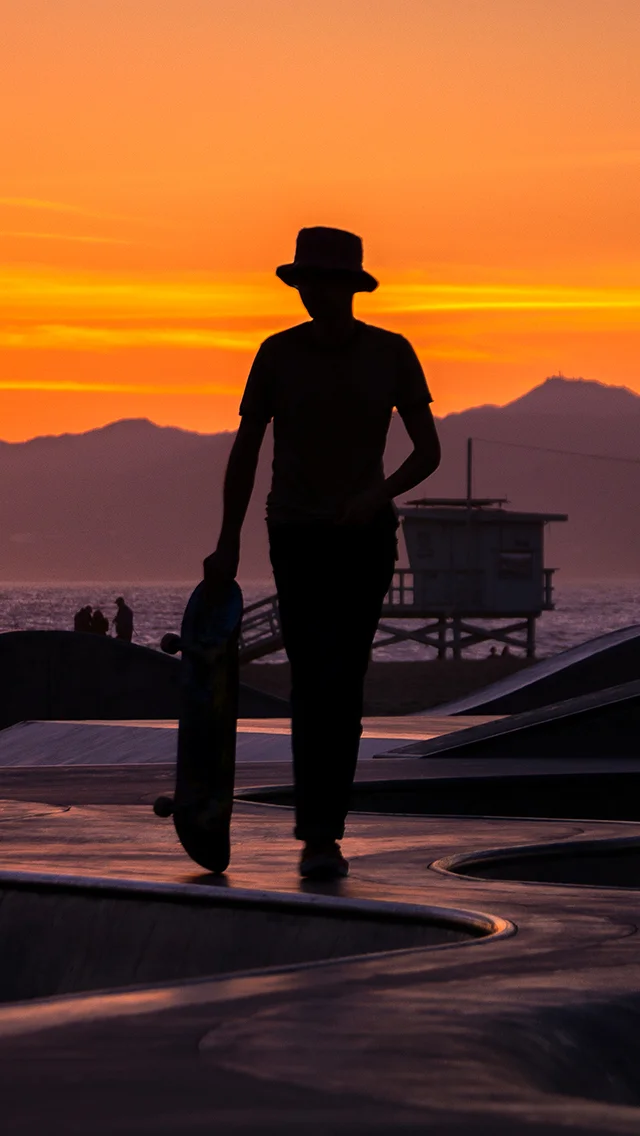
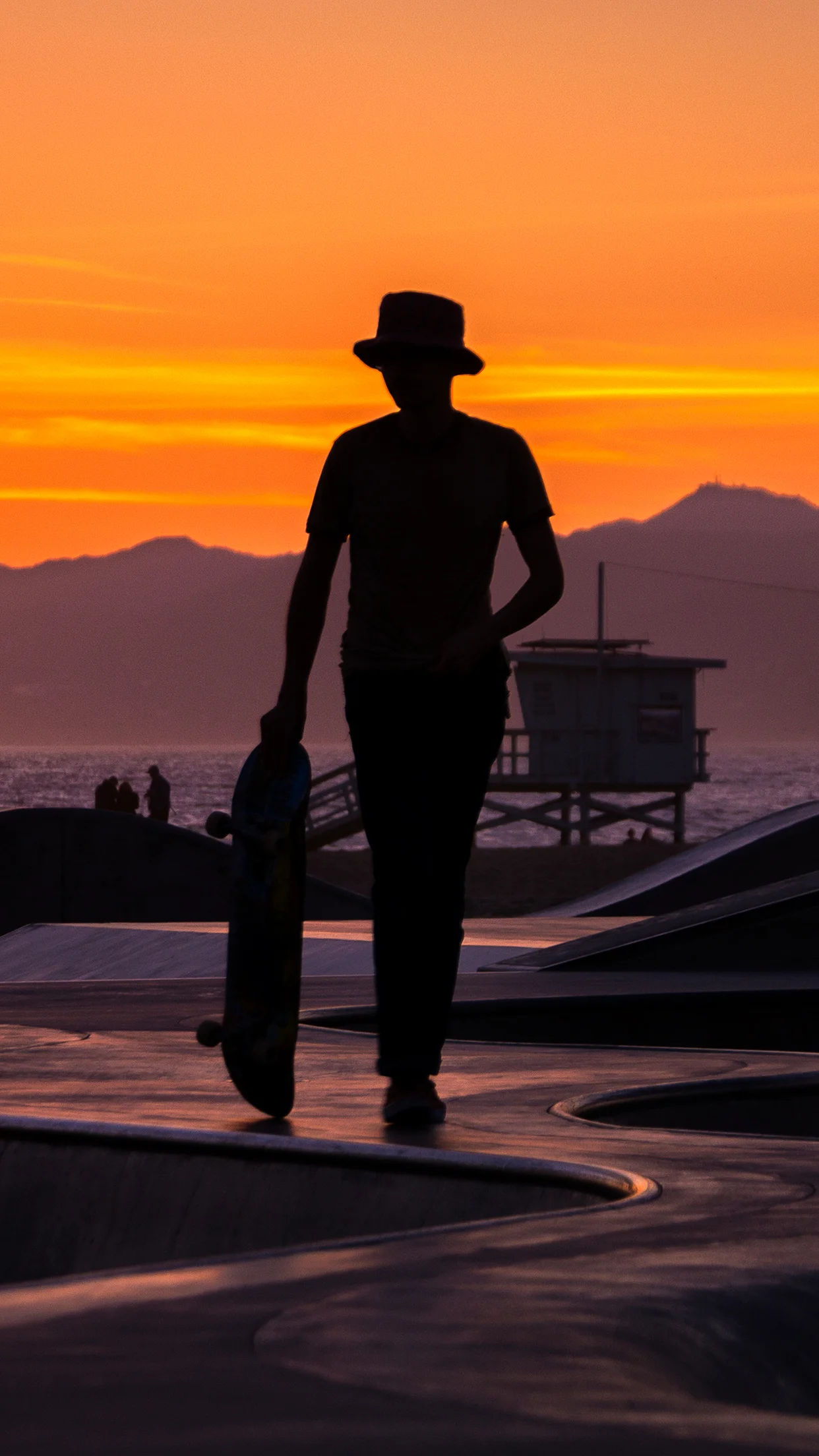
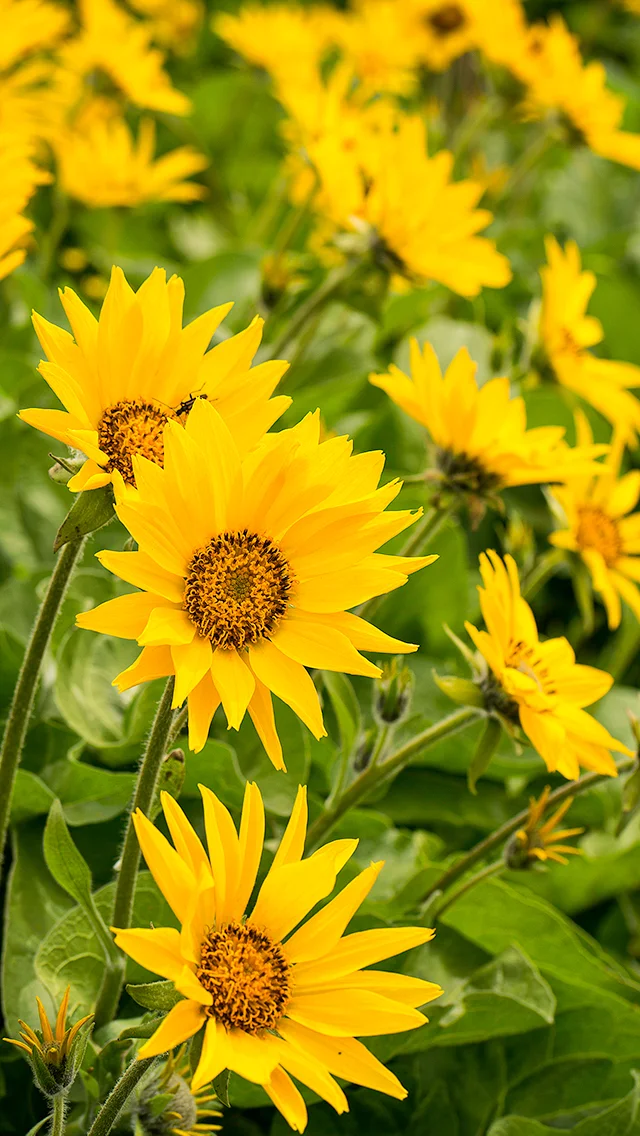
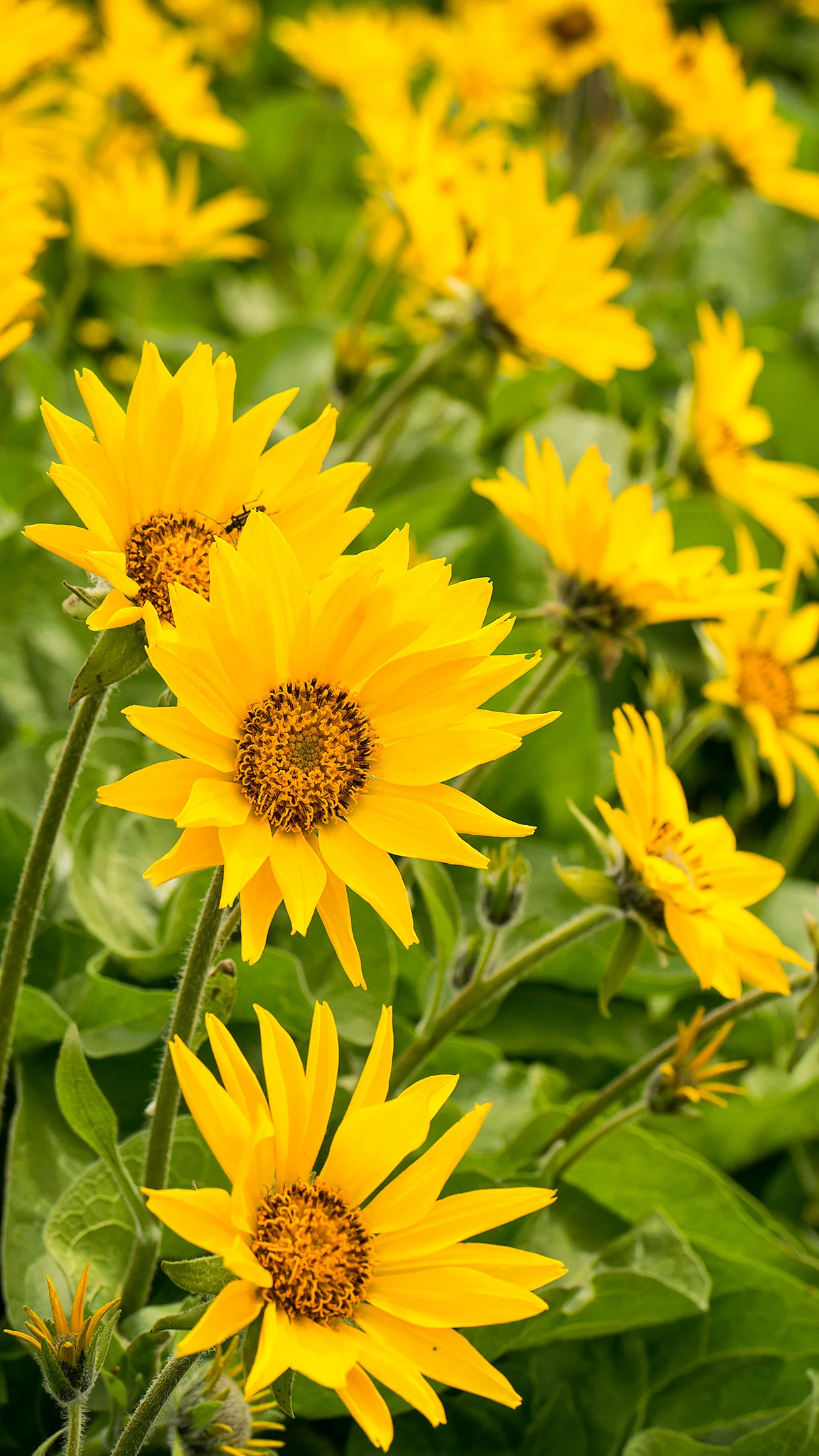
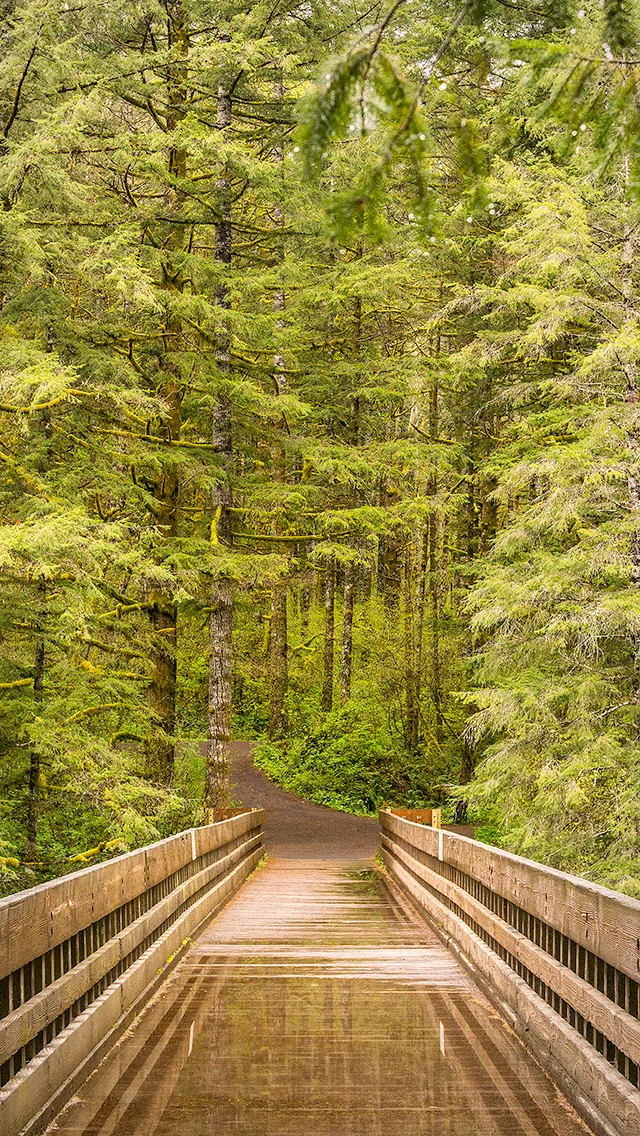
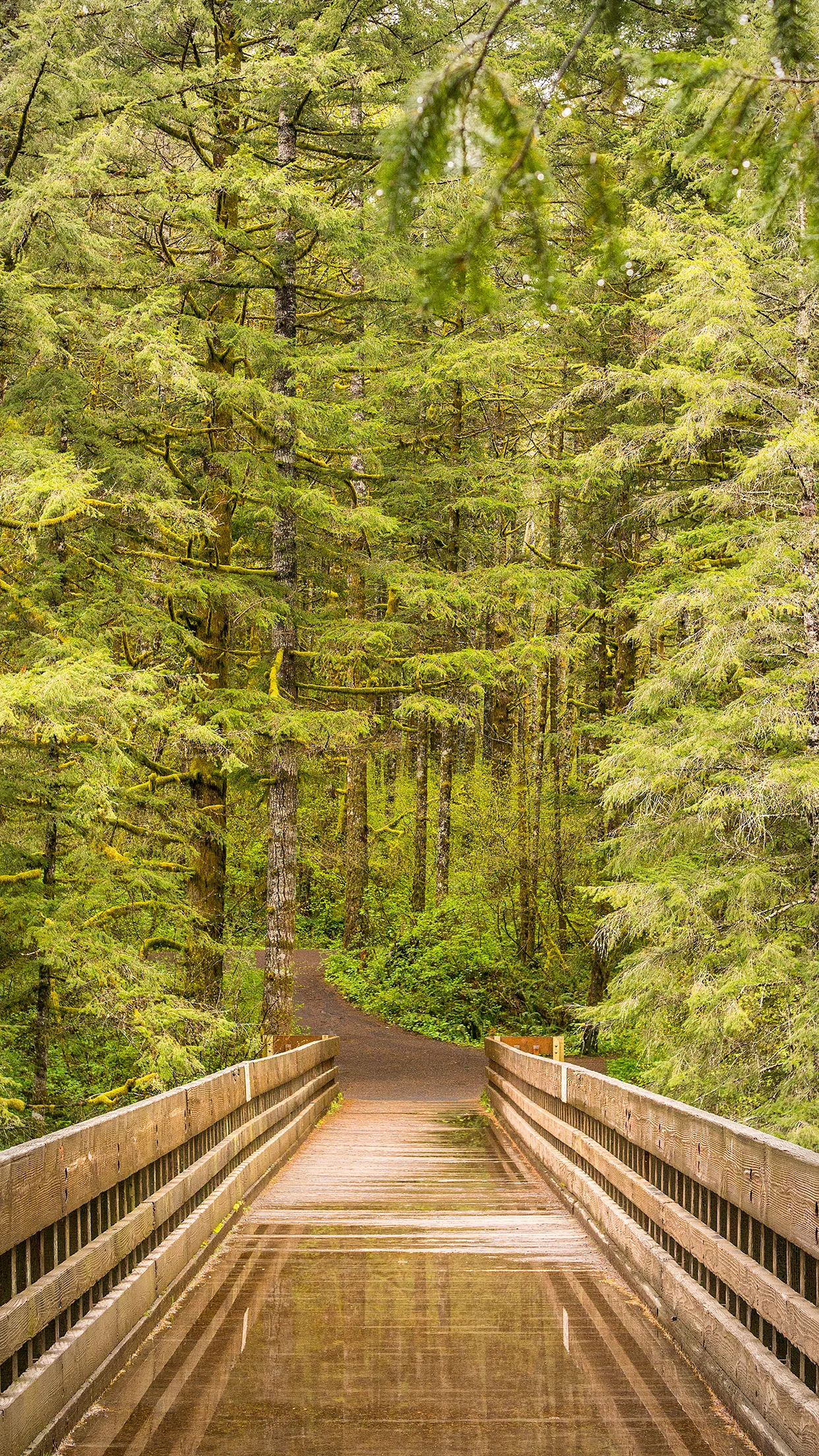
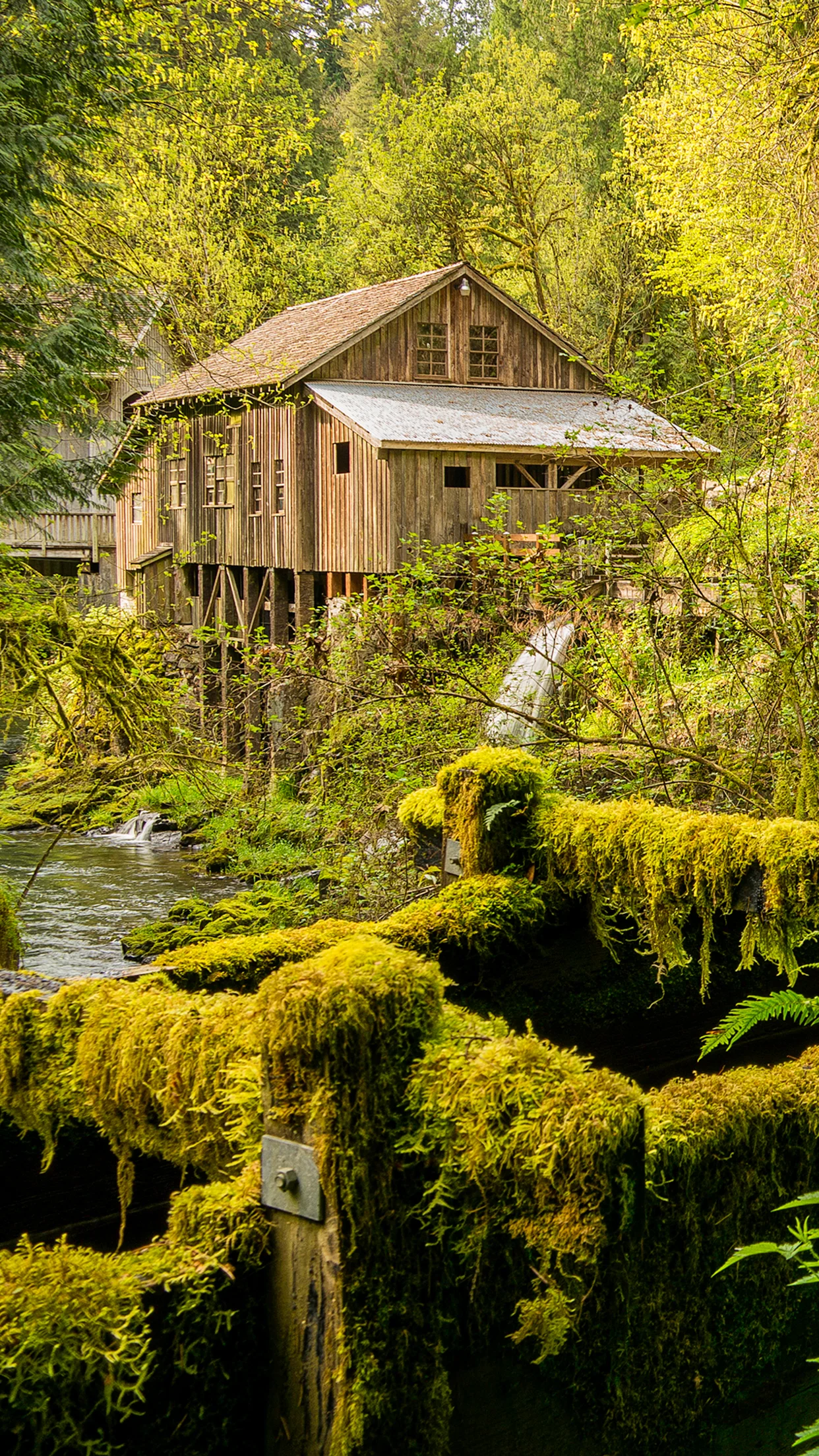
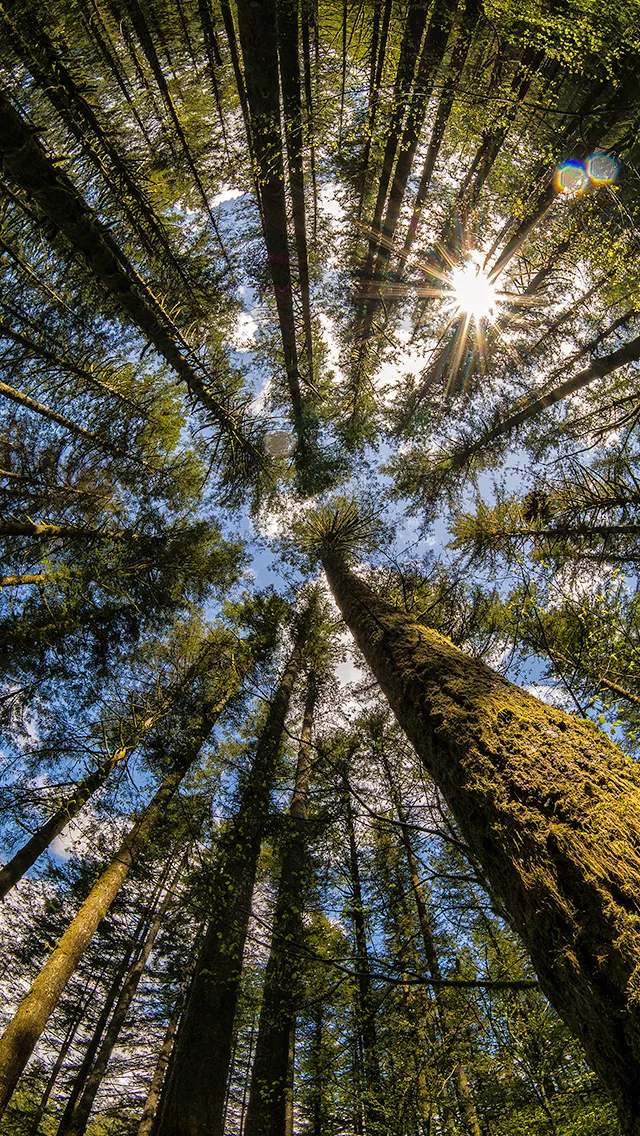
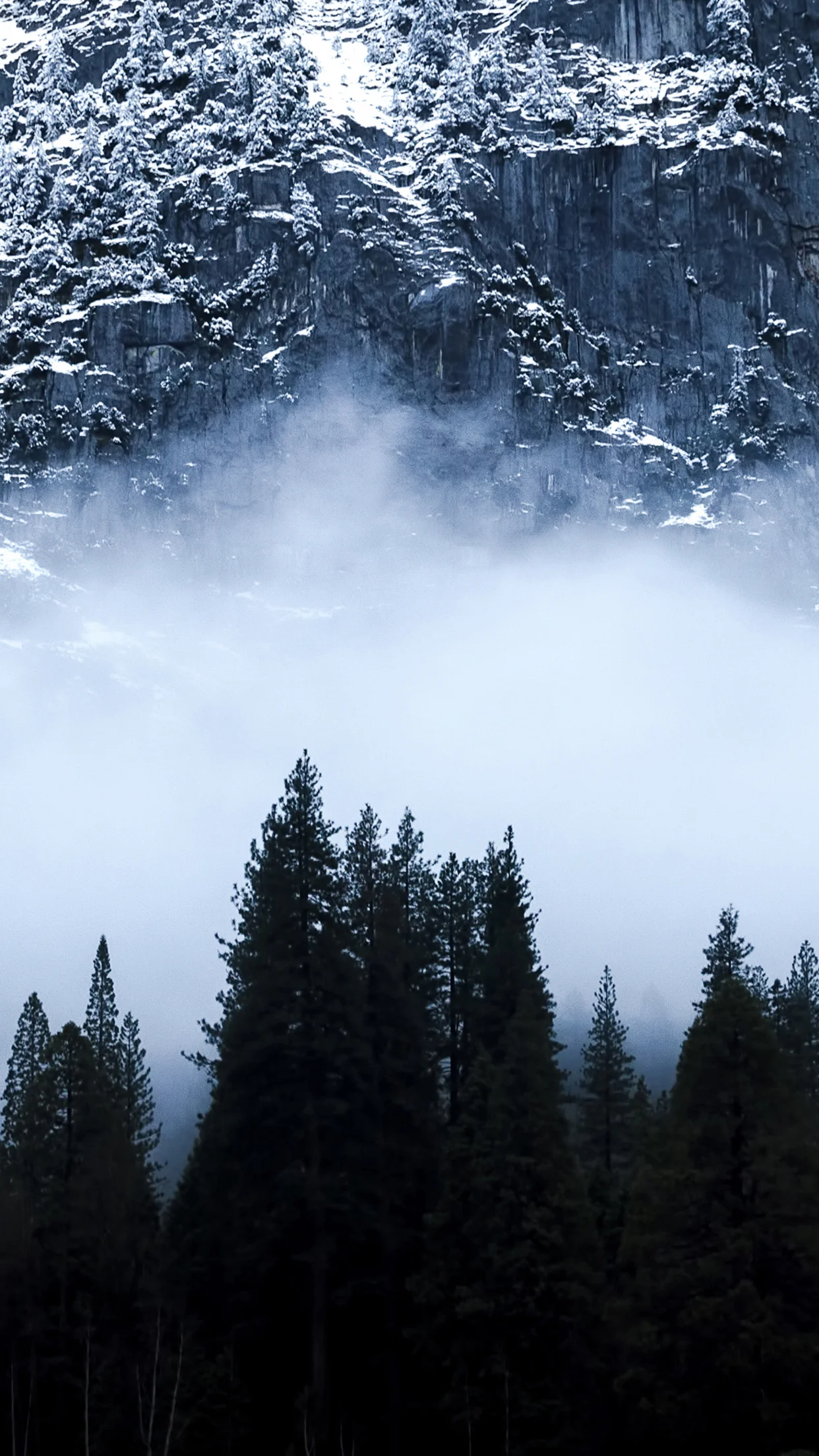
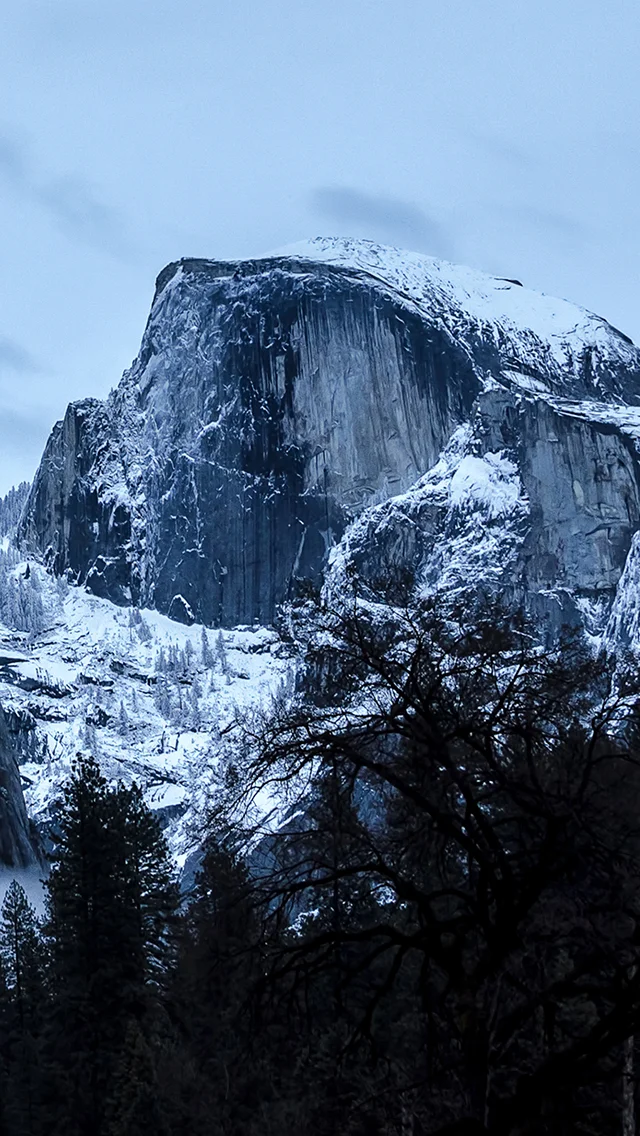
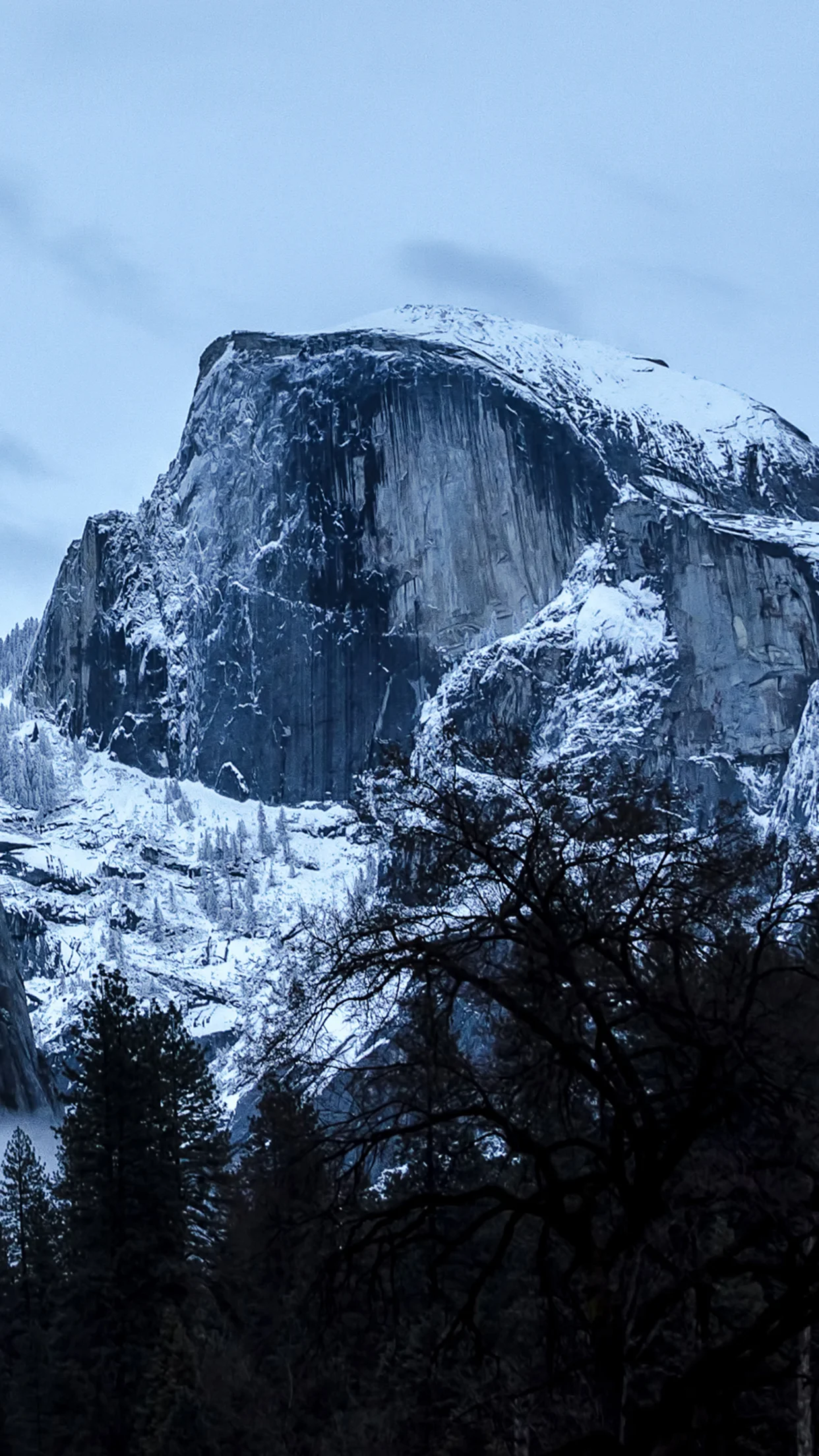
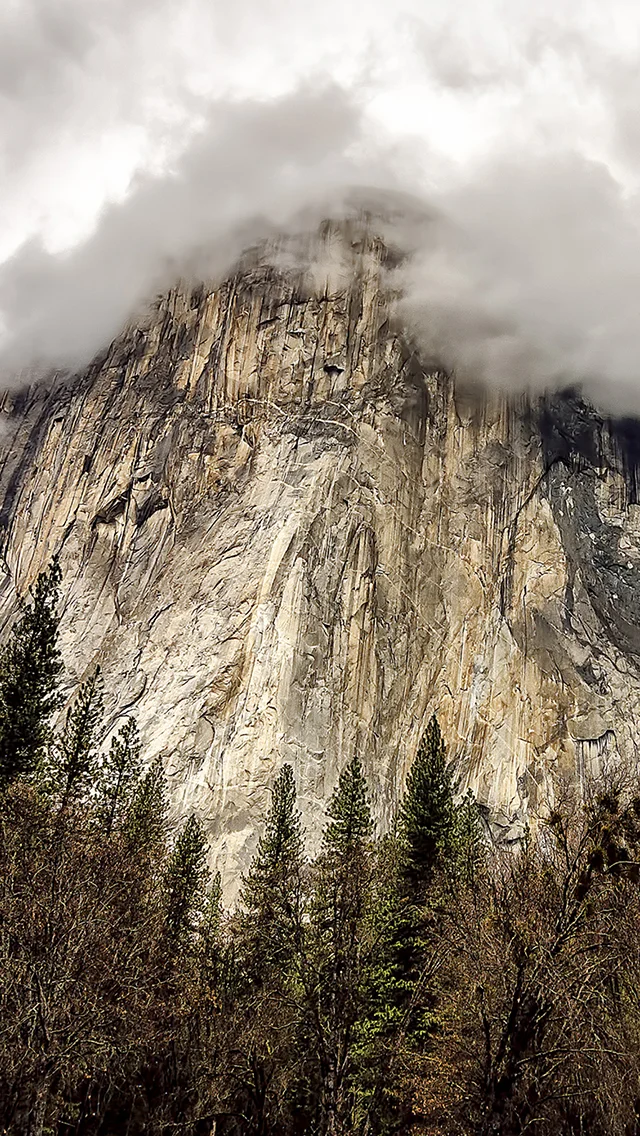
    For the lucky ones who managed to snag an iPhone 6 or iPhone 6 Plus, I figured I’d throw together a collection of my images sized and optimized to serve as background wallpapers to grace the face of your new device. There are several scenes covering various locations from Yosemite to Venice to a gorgeous Grist Mill in Washington. Hopefully there’s something in there that’ll tickle your fancy. The first image will always the iPhone 6 version, and the second one next to it will be the iPhone 6 Plus version. Find the one(s) you want, Right-Click and Save Link As. That should save the full size version. Or you can click on the image, and it will open in another page and you can save it from there. Or, if you’re on the device itself, click the one you want, and then when it shows up full screen, hold down a finger on it, and then choose ‘Save Image.’

    And in case you’re new to manual photography, which is a new feature now available on iOS 8, make sure to check out my post from earlier this week, What Apple iOS 8 Manual Camera Controls Means For The Masses.

    And for more of my madness and other happenings and what-nots and billy-bobs and jigga-ma-things: Instagram: @wasimofnazareth Twitter: @wasimofnazareth Google+: www.Google.com/+WasimMuklashy Facebook: www.Facebook.com/WasimOfNazareth
    All images other than the Yosemite images were taken on Samsung NX30 and NX300 mirrorless cameras. The Yosemite images were taken using a Nikon D7000 before I switched to mirrorless as part of Samsung’s Imagelogger program.

    Wasim Muklashy Photography_Mono Lake_California_iPhone6
    Wasim Muklashy Photography_Mono Lake_California_iPhone6
    Wasim Muklashy Photography_Mono Lake_California_iPhone6Plus
    Wasim Muklashy Photography_Mono Lake_California_iPhone6Plus
    Wasim Muklashy Photography_Pole Position_iPhone6
    Wasim Muklashy Photography_Pole Position_iPhone6
    Wasim Muklashy Photography_Pole Position_iPhone6Plus
    Wasim Muklashy Photography_Pole Position_iPhone6Plus
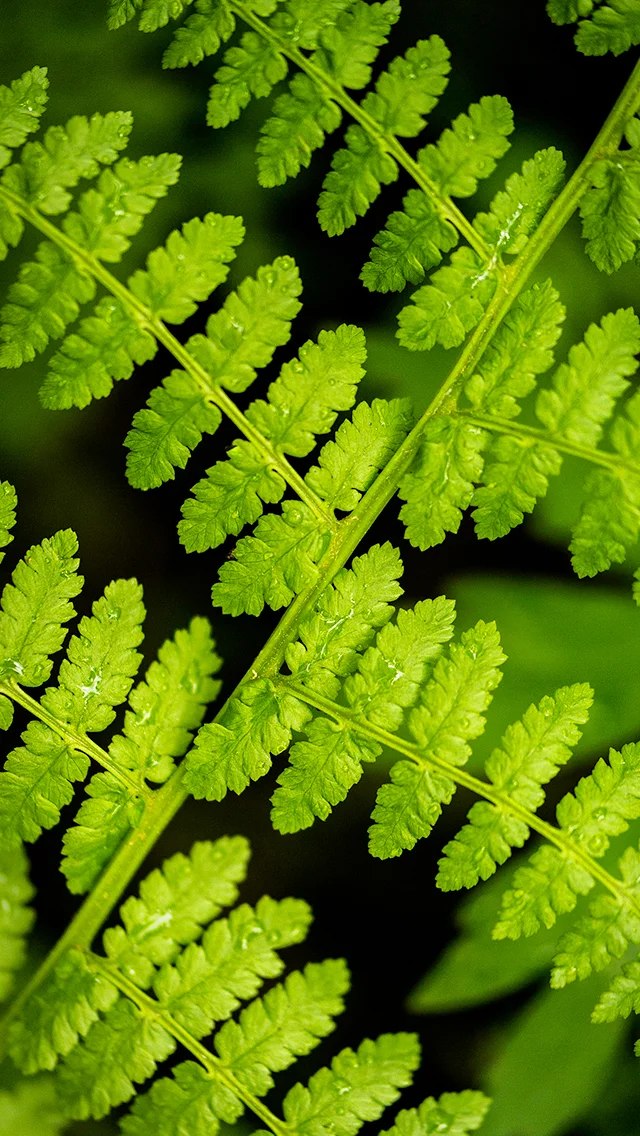
    Wasim Muklashy_Ferns_Ponytail Falls_Oregon_iPhone6
    Wasim Muklashy_Ferns_Ponytail Falls_Oregon_iPhone6
    Wasim Muklashy_Ferns_Ponytail Falls_Oregon_iPhone6Plus
    Wasim Muklashy_Ferns_Ponytail Falls_Oregon_iPhone6Plus
    Wasim_Muklashy_Skateboarding_Venice_CA_iPhone6
    Wasim_Muklashy_Skateboarding_Venice_CA_iPhone6
    Wasim_Muklashy_Skateboarding_Venice_CA_iPhone6Plus
    Wasim_Muklashy_Skateboarding_Venice_CA_iPhone6Plus
    Wasim Muklashy_Sunflowers_Columbia River Gorge_Oregon_iPhone6
    Wasim Muklashy_Sunflowers_Columbia River Gorge_Oregon_iPhone6
    Wasim Muklashy_Sunflowers_Columbia River Gorge_Oregon_iPhone6Plus
    Wasim Muklashy_Sunflowers_Columbia River Gorge_Oregon_iPhone6Plus
    Wasim_Muklashy_Bridge To Somewhere_Washingtion_iPhone6
    Wasim_Muklashy_Bridge To Somewhere_Washingtion_iPhone6
    Wasim_Muklashy_Bridge To Somewhere_Washingtion_iPhone6Plus
    Wasim_Muklashy_Bridge To Somewhere_Washingtion_iPhone6Plus
    Wasim Muklashy Photography_Cedar Creek Grist Mill_Washington_iPhone6
    Wasim Muklashy Photography_Cedar Creek Grist Mill_Washington_iPhone6
    Wasim Muklashy Photography_Cedar Creek Grist Mill_Washington_iPhone6Plus
    Wasim Muklashy Photography_Cedar Creek Grist Mill_Washington_iPhone6Plus
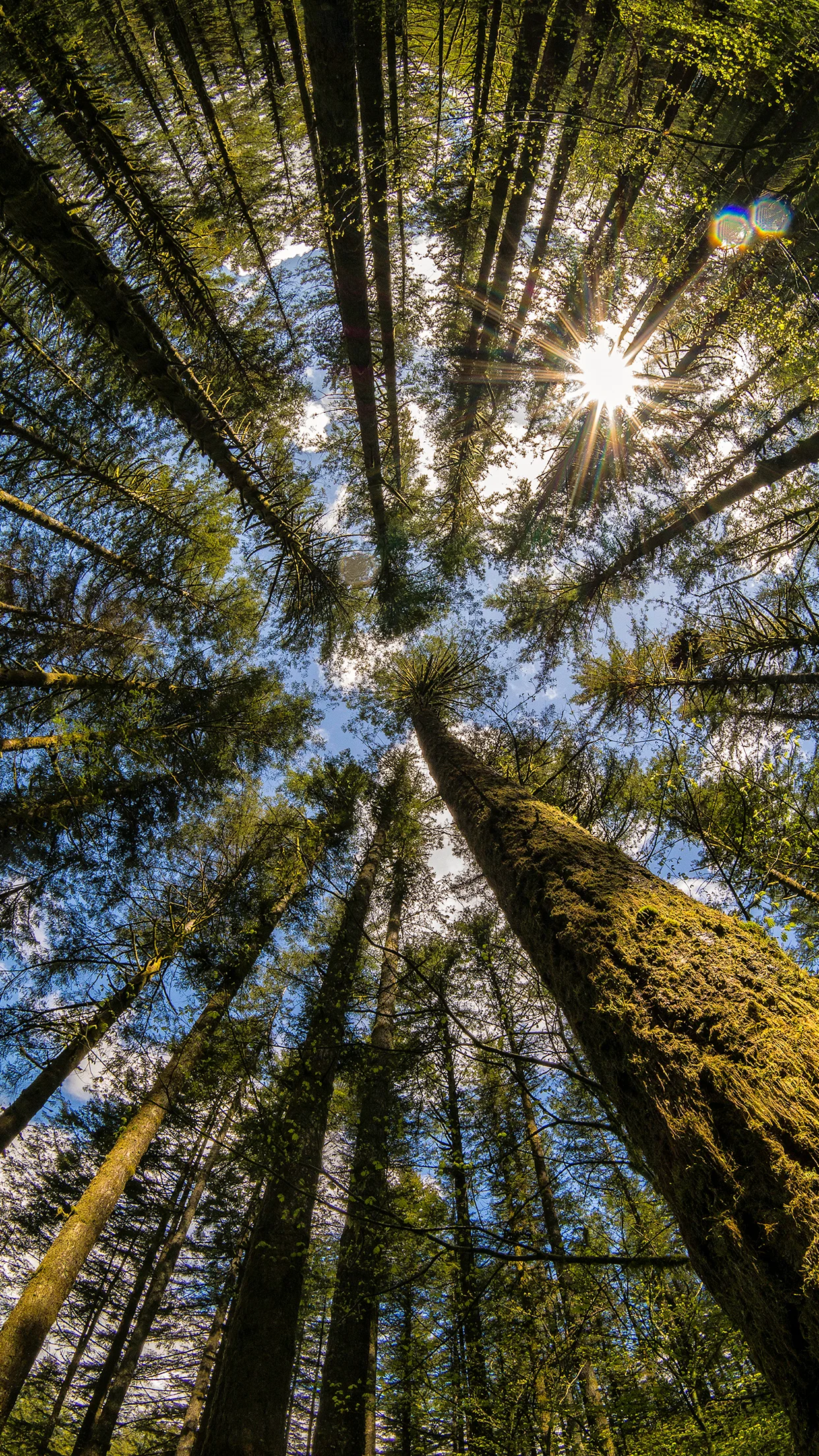
    Wasim_Muklashy_Eye In The Sky_Washington_iPhone6
    Wasim_Muklashy_Eye In The Sky_Washington_iPhone6
    Wasim_Muklashy_Eye In The Sky_Washington_iPhone6Plus
    Wasim_Muklashy_Eye In The Sky_Washington_iPhone6Plus
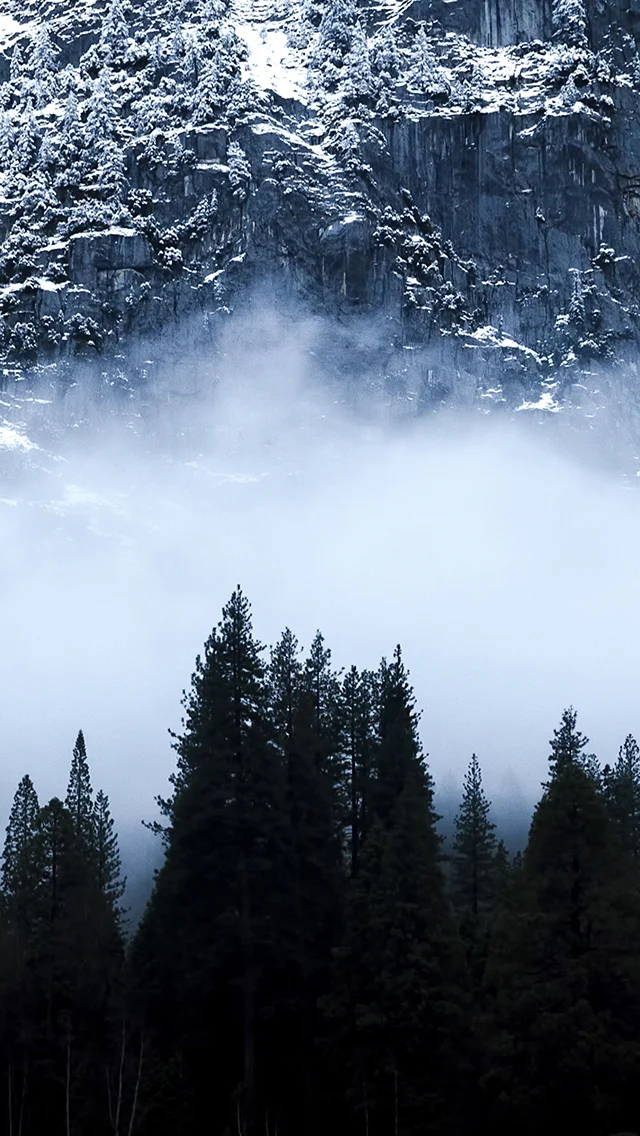
    rolling in.
    rolling in.
    rolling in.
    rolling in.
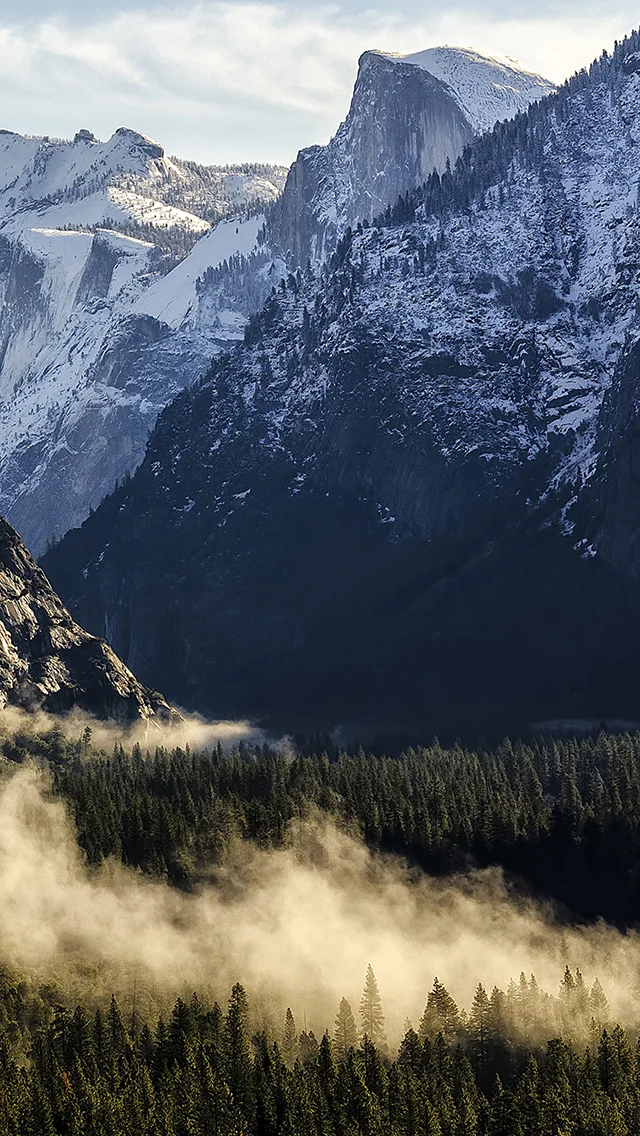
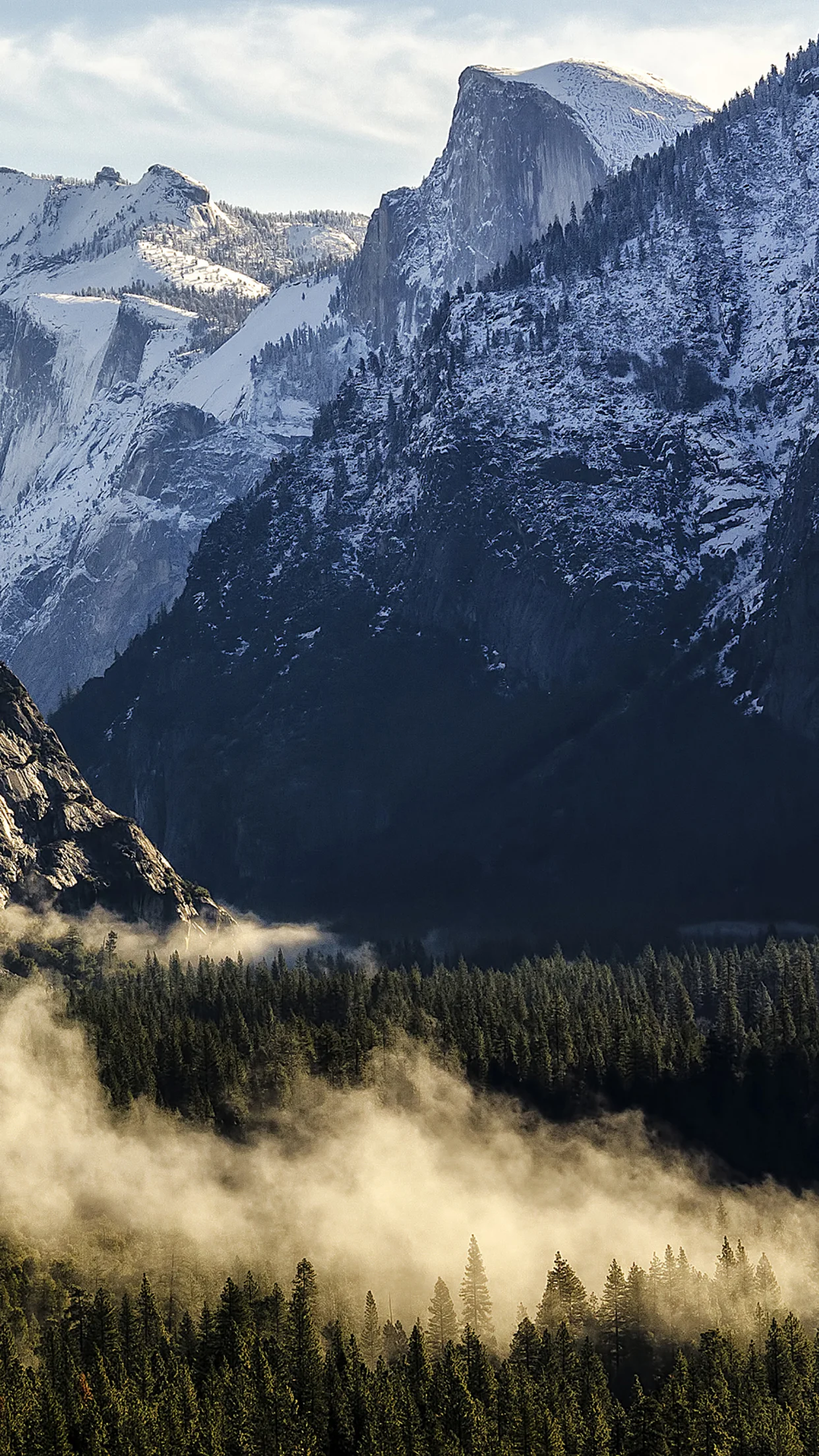
    a slice of yosemite layer cake
    a slice of yosemite layer cake
    a slice of yosemite layer cake
    a slice of yosemite layer cake
    half dome after the storm.
    half dome after the storm.
    half dome after the storm.
    half dome after the storm.
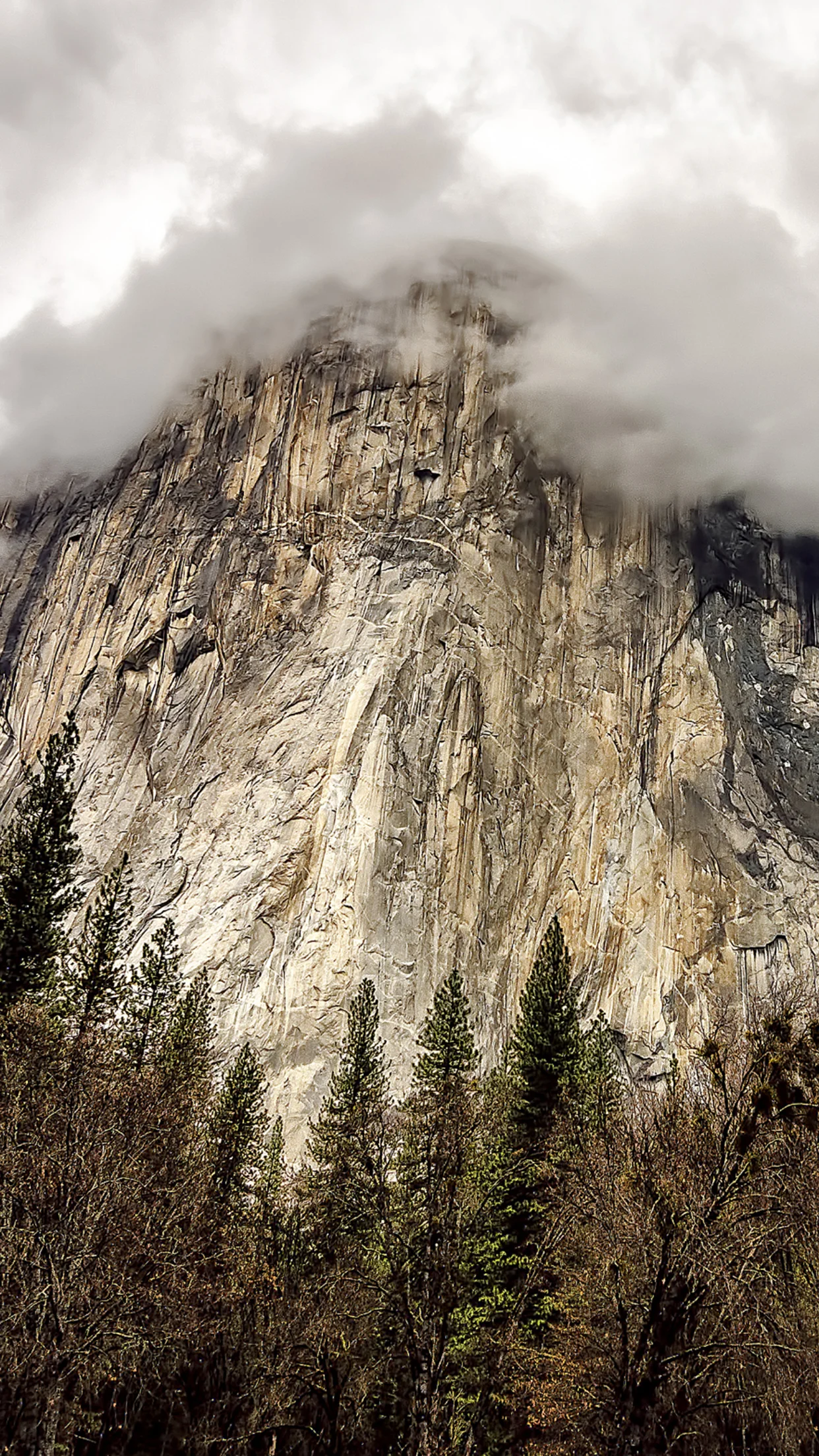
    el capitan dares you.
    el capitan dares you.
    el capitan dares you.
    el capitan dares you.
  • How Instagram’s Cheesy Photo Filters Have Made Us More Creative

    How Instagram’s Cheesy Photo Filters Have Made Us More Creative

    I know.

    I was one of those people.

    But after rediscovering Instagram the past few months since deleting my original account two years ago as a futile act of defiance after the billion dollar Facebook acquisition, I’ve come to realize, that couldn’t be further from the truth. It’s far from cheating and it’s actually quite the contrary, it’s incredibly liberating…which just so happens to be a prerequisite for the most creative of all art!

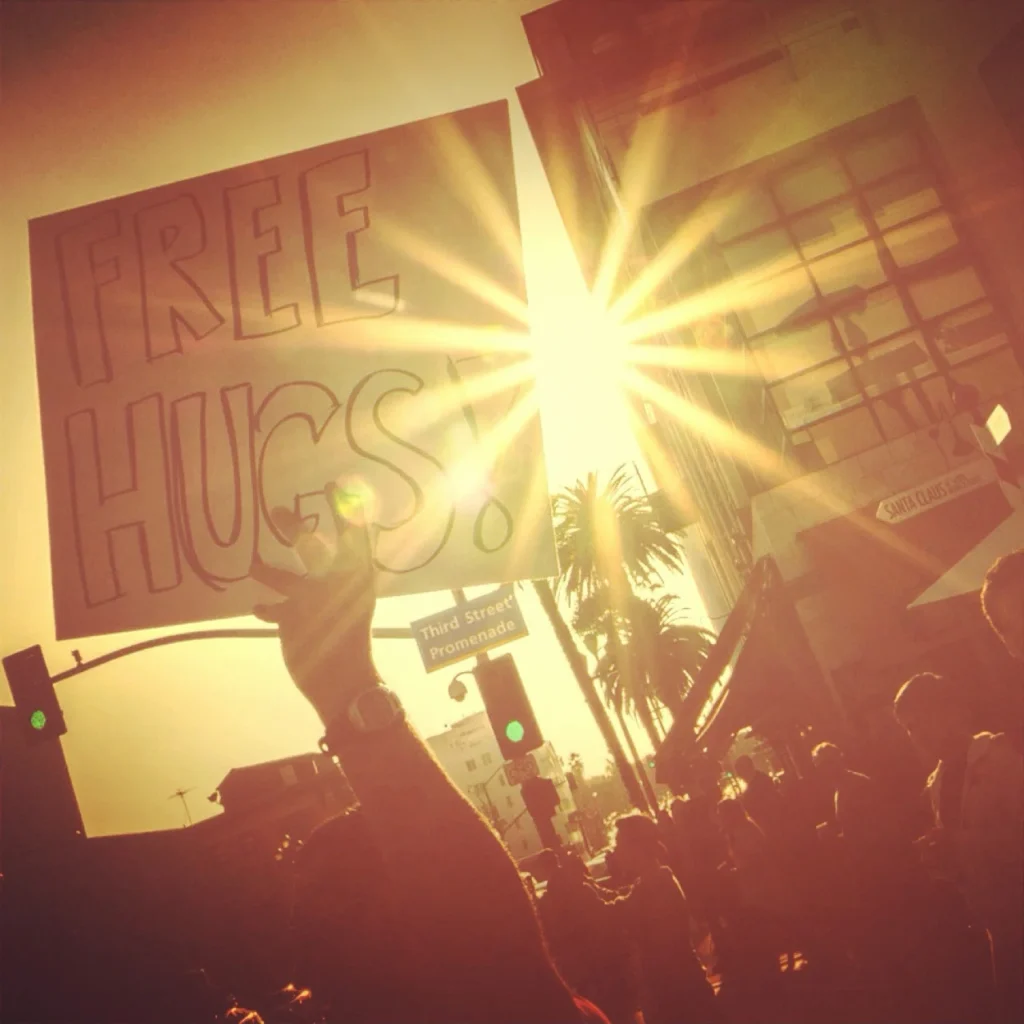
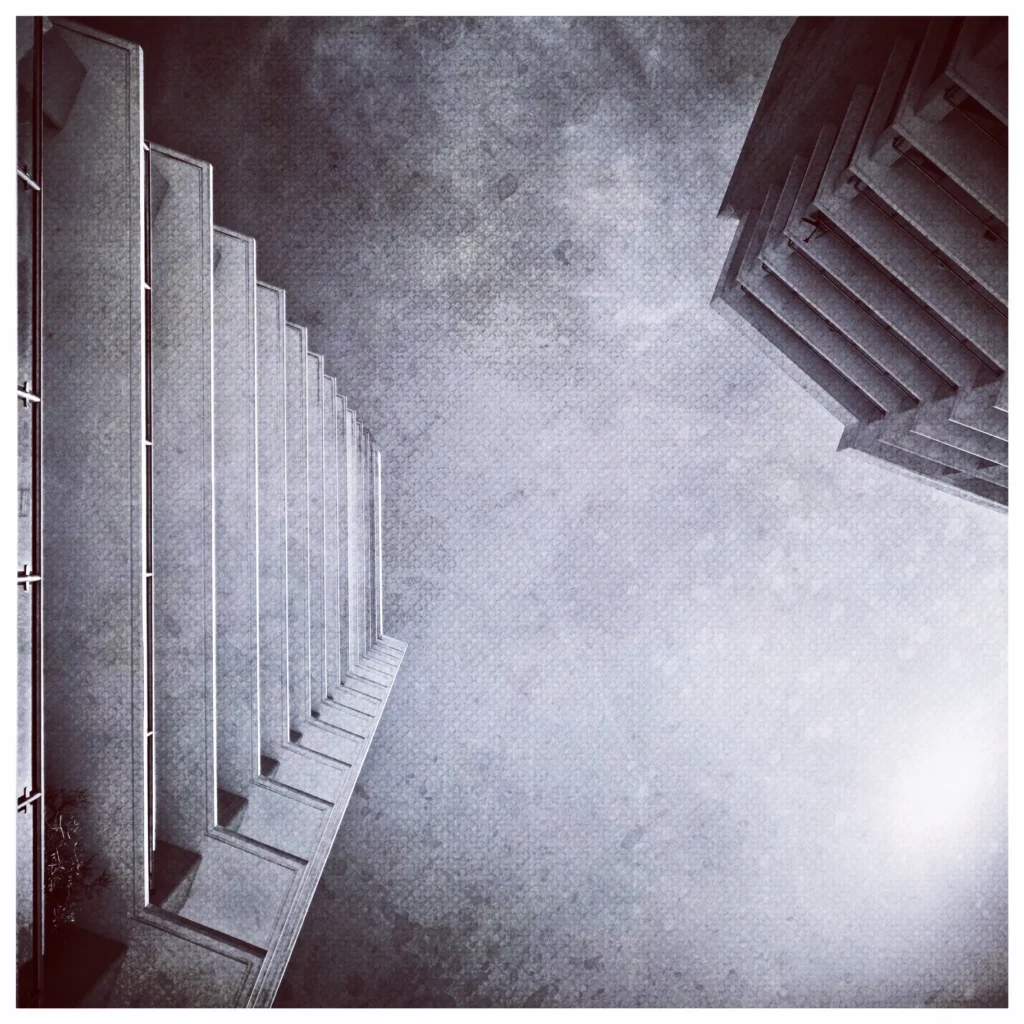
    Basically, here’s my take: just because I don’t know how to make something look like an old western scratched sepia photo print in Photoshop, or I don’t have an old western camera with old western film and old western chemicals and an old western darkroom to process in, doesn’t mean I shouldn’t be allowed to express a vision that happens to be in the style of an old western scratched sepia photo print. If I had to learn how to do it, or save up to buy all them old western stuffs, I’d end up spending hours, if not days, or perhaps even months, detracting from continuing to engage the original spark of that imagination by developing the story or idea. When I see something and want to see it in an old western scratched sepia photo print sorta way, I can do it with the tap of a button, allowing me more energy to concentrate on refining the overall vision. This, consequently, allows me to be more creative without the fear of technical gibberish slowing me down.

    Essentially, with the quick one step filters we actually have tools to help us express a creative vision that runs quicker and closer to the speed that our mind conjures it up. In many cases, it even gives us ideas that we wouldn’t have had before, conjuring up certain emotions and feelings based on how that image looks based on how we decided to treat it. Our imagination becomes something that stays ‘on’ at all times, allowing us to visualize and create and refine and build upon the wily creative spark when the elusive bugger decides to actually show up. Moreover, in my case, it’s allowed me to retool and re-envision many images I already have, and present them to an entirely new audience who may never have seen them otherwise.

    And I think we’re all starting to catch up with these sorts of thoughts. Yes, when these ‘toys’ were first brought to market, it was easy to dismiss them as meaningless and short-lived and a ‘fad’ and all that gobbledegook. But heck, we didn’t know any better because we’ve never quite seen anything like that on a mass consumed scale. But since then, even institutions that have prided for over a century about the quality of their images and media output, like National Geographic and Smithsonian and Getty Images, have adopted Instagram and Twitter accounts, and in National Geographic’s case, even has a section in their digital publication format surrounded by that iconic yellow border, dedicated to the Instagram feeds of their photographers in the field. And some of my favorite professional photographers have embraced the mediums as well. In a short 4 years, Instagram has become an institution in itself – creating celebrity Instagrammers that have led to extremely profitable small businesses based on their feeds, while simultaneously building a rabid fan base large and influential enough to command a billion dollar pricetage by Facebook. And, well, if Facebook bought a toy, well, it was a damn expensive one!

    Additionally, the fact that most ‘professional’ and ‘prosumer’ cameras these days are equipped with built-in wifi, like the Samsung NX30 and Samsung NXMini I’ve been using lately as part of the Imagelogger program, allows you to immediately take a high quality photo and transfer it to your mobile device for processing and sharing…an idea that seemed preposterously foreign just 5 years ago.

    Anyhow, I suppose what I’m getting at here is that I’m finally beginning to let go of the idea that things need to stay the way they are or the way they’ve ‘been.’ After all, in reality, nothing at all has ever stayed the way it’s ‘been.’ Ever. And heck, who would really want it to!? So if I, as a creative, don’t adapt and embrace the tools (and toys) that are available to us in these insanely exciting days, then, well, I’m just gonna end up left by the wayside, while everyone else has all the fun.

    Screw that. I wanna have some fun too!

    For more of my madness: Instagram: @wasimofnazareth Twitter: @wasimofnazareth Google+: www.Google.com/+WasimMuklashy Facebook: www.Facebook.com/WasimOfNazareth
  • Let The Topanga Gradient Take Over Your iPhone!

    Let The Topanga Gradient Take Over Your iPhone!

    Wasim_Muklashy_Topanga_CA_031614_NX30_SAM_0547_iPhone5_Parallax

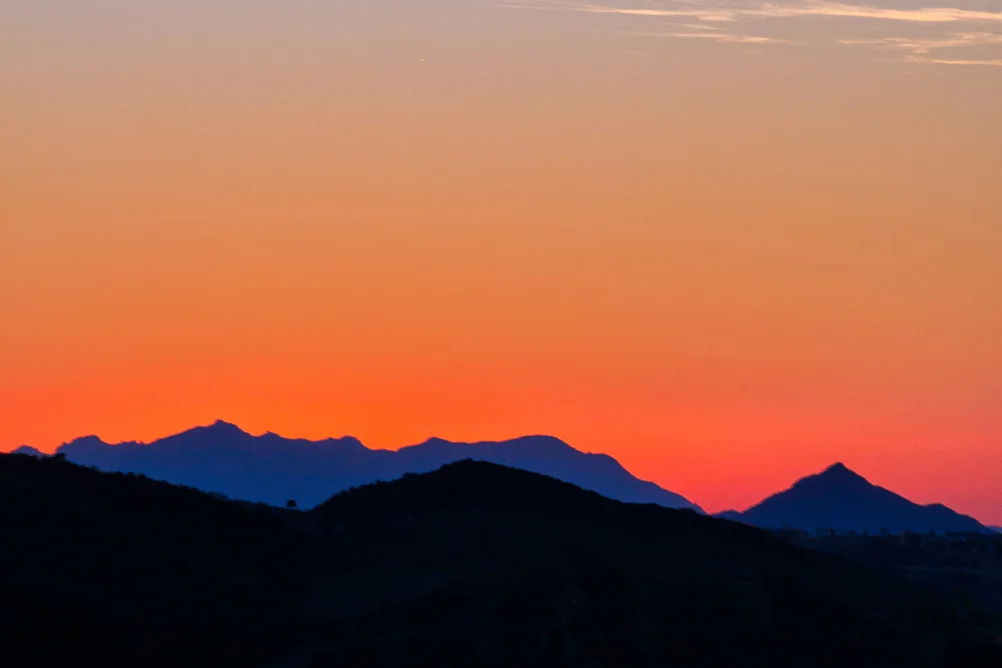
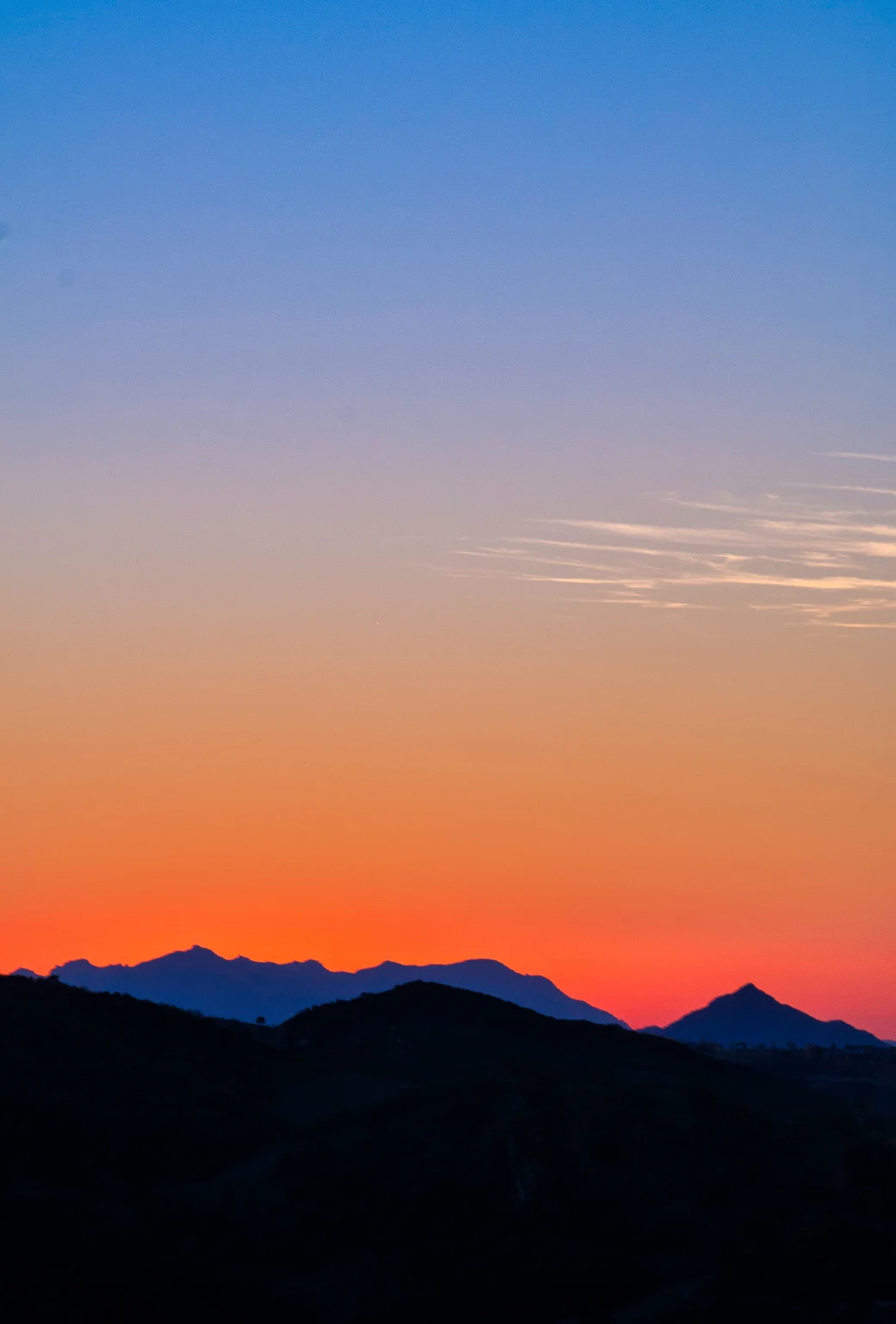
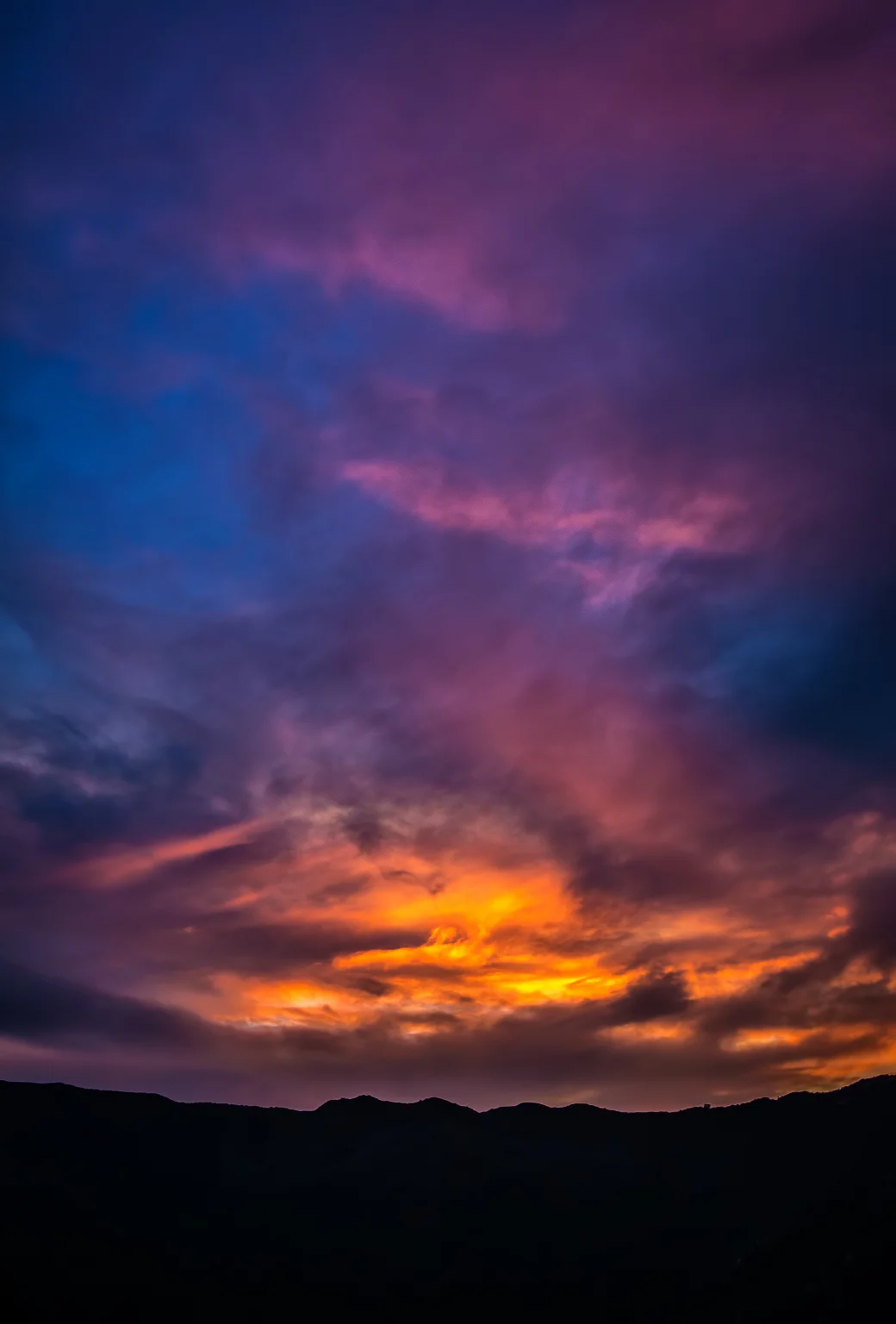
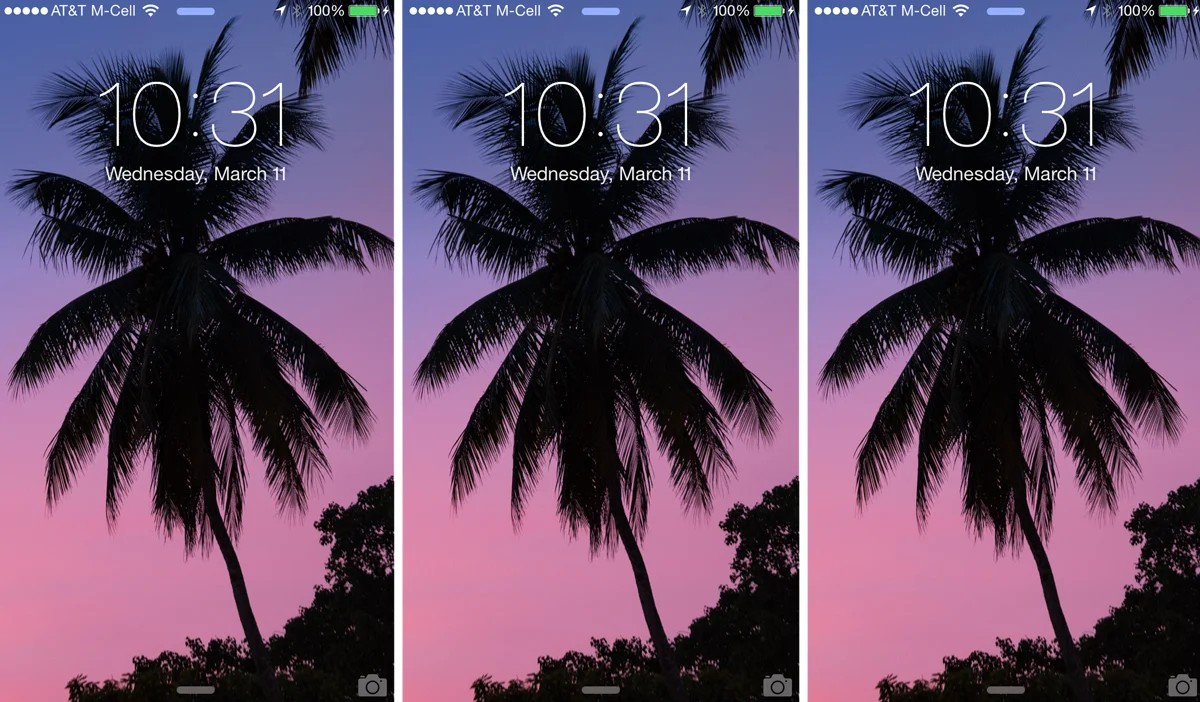
    Every now and again I throw out an image I feel fits well as a background for the iPhone, and now is one of those agains. Here’s an image I captured last week on the Samsung NX30 as the sun was dropping behind this Santa Monica Mountains ridgeline overlooking Topanga Canyon, California. The gradient of colors was insane, so figured why not bring insanity to your phone. Just right click on the bugger and save the source image (‘Save Link As…’), or click right here, and there you go.

    If you’ve missed the past backgrounds I’ve posted, here they are again:

    California Finally Got Rain And Left Us With A Gift – Another iPhone BackgroundA Fresh Selection Of iPhone 5 Parallax Wallpapers If You Wanna
    Happy iOS 7 Day! Here’s A Fresh Wallpaper For That Parallax iPhone Action!
    Happy iPhone Day! Here’s Some Teasers & iPhone Stuffs
    Some Autumn Themed Parallax Wallpaper Madness for your iOS 7 iThings

    And as always, if you don’t use an iPhone and you’d like the background formatted for your mobile device, let me know, I’ll gladly do so.

  • California Finally Got Rain And Left Us With A Gift – Another Perfect iPhone Wallpaper!

    California Finally Got Rain And Left Us With A Gift – Another Perfect iPhone Wallpaper!

    So I was out on a job on Monday afternoon, and it was the day after Los Angeles finally got a bout of MUCH needed and necessary rain to break the spell of the drought, and the Southland’s citizens weren’t the only ones happy about it. The skies and trees and flora and fauna went kinda nuts as well. So here’s a capture taken on the Samsung NX300 that’s optimized for iPhone 5 parallax fantastica, and, as always, if you’d like it for a different device, let me know, I’ll be more than happy to size it for that as well. Anywho, just right click and save the source image. If you missed my last few batches, here are some others that might work for you:

    A Fresh Selection Of iPhone 5 Parallax Wallpapers If You Wanna

    Happy iOS 7 Day! Here’s A Fresh Wallpaper For That Parallax iPhone Action!

    Happy iPhone Day! Here’s Some Teasers & iPhone Stuffs

    Some Autumn Themed Parallax Wallpaper Madness for your iOS 7 iThings

  • A Fresh Selection Of iPhone 5 Parallax Wallpapers If You Wanna

    A Fresh Selection Of iPhone 5 Parallax Wallpapers If You Wanna

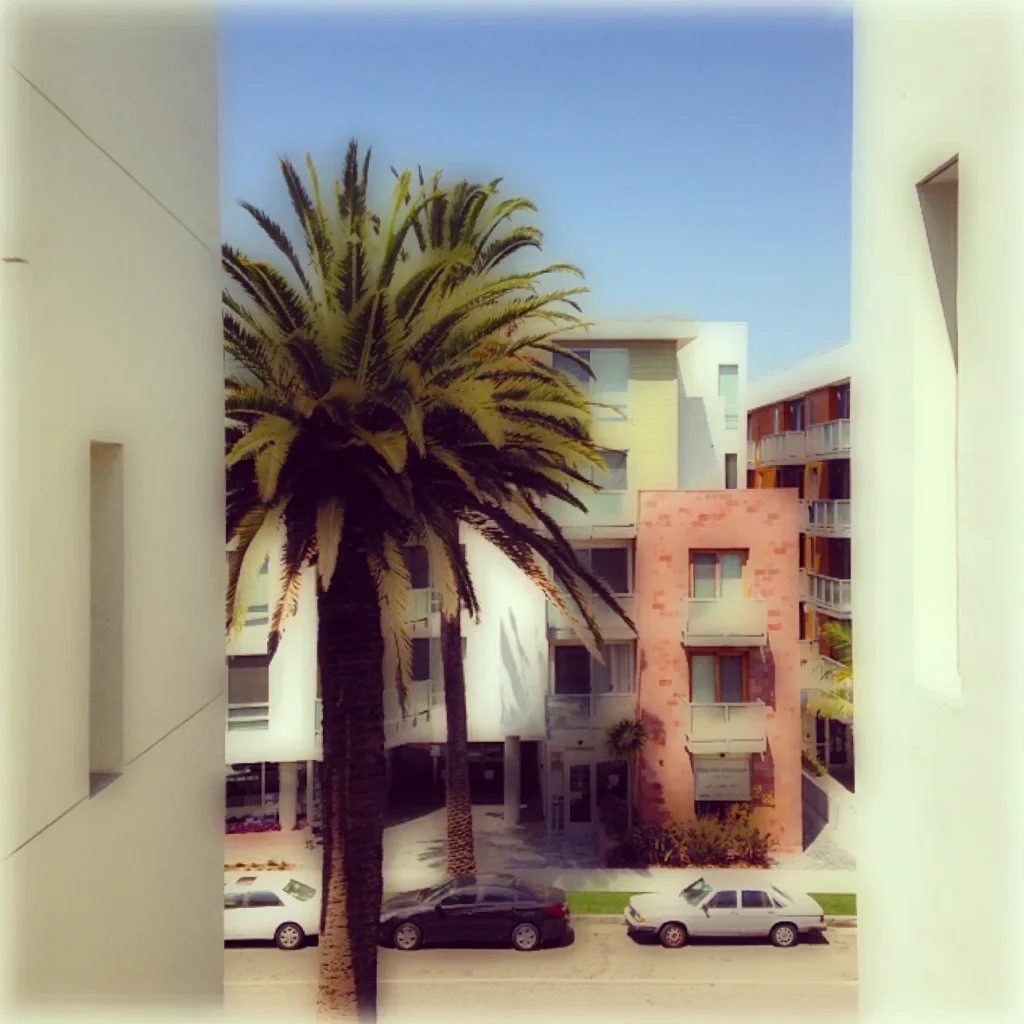
    Santa monica ca iphone5p

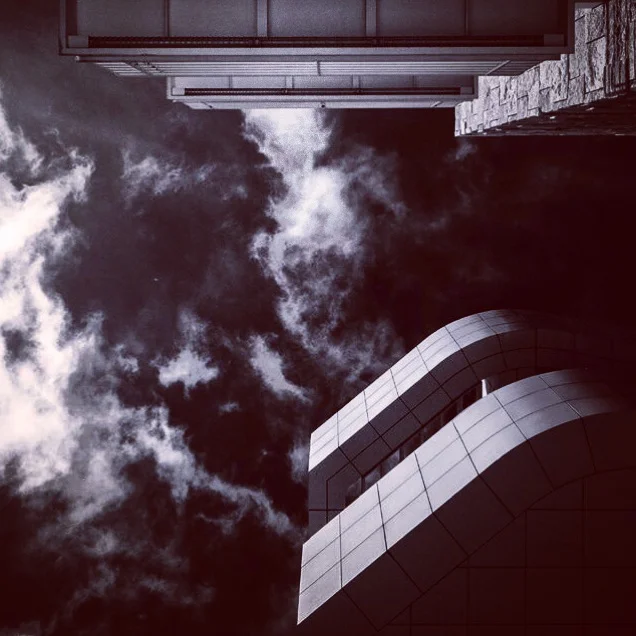
    Murrieta ca iphone5p

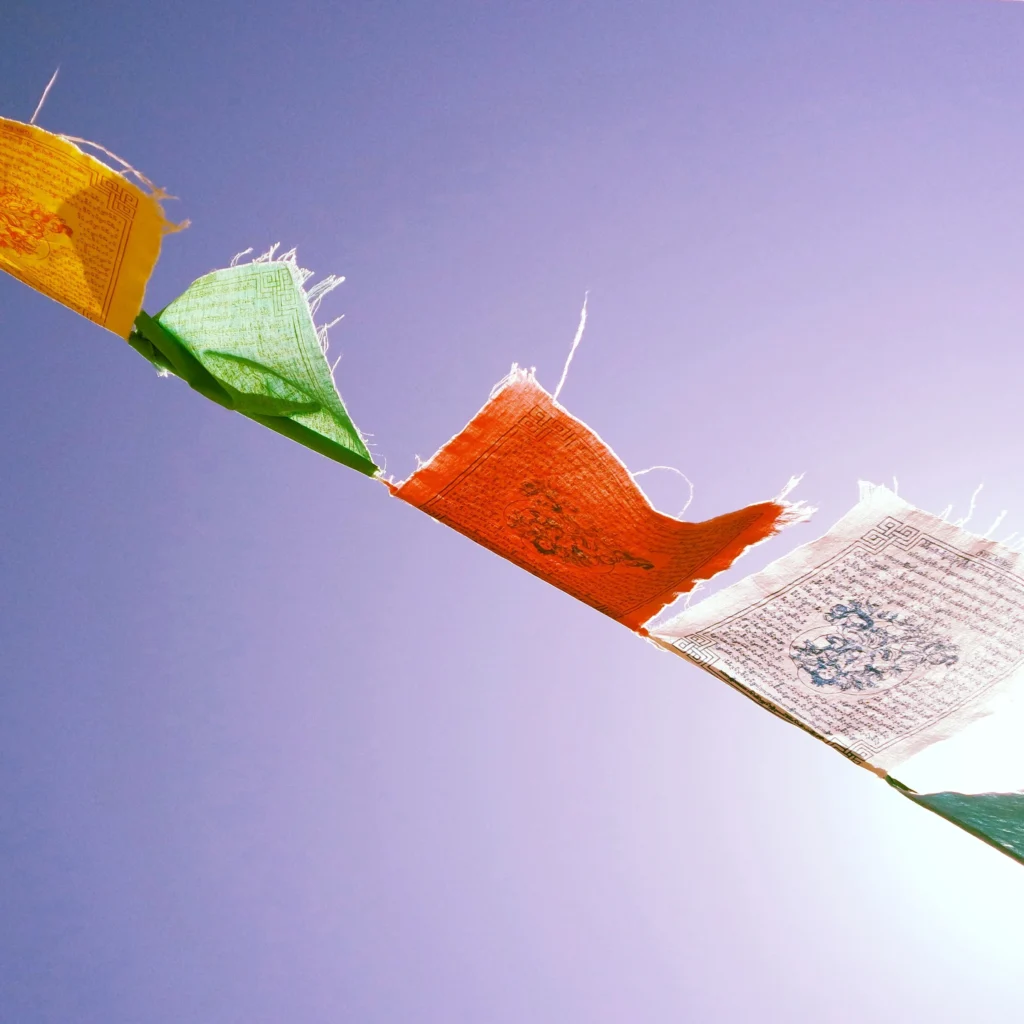
    Topanga canyon ca iphone5p

    I know it’s been a while, and have quite a few things lined up for real soon, but until then hopefully a few iPhone5 parallax wallpapers can tide you over if you want ’em…

    If you’re on your iPhone, just click the one you like and when the full resolution one comes up, press down, and save to camera roll. If you’re in your browser, you can do the same by right-clicking and saving the image to your hard drive.

    These were all shot on the Samsung NX300 for their Imagelogger program. And as always when I throw these suckers out there, if I get enough interest for other devices, I’ll gladly begin to format for those as well. Feel free to drop me a line…

  • Some Autumn Themed Parallax Wallpaper Madness for your iOS 7 iThings.

    Some Autumn Themed Parallax Wallpaper Madness for your iOS 7 iThings.

    Had to get out iphone5

    Fell on mulholland iphone5

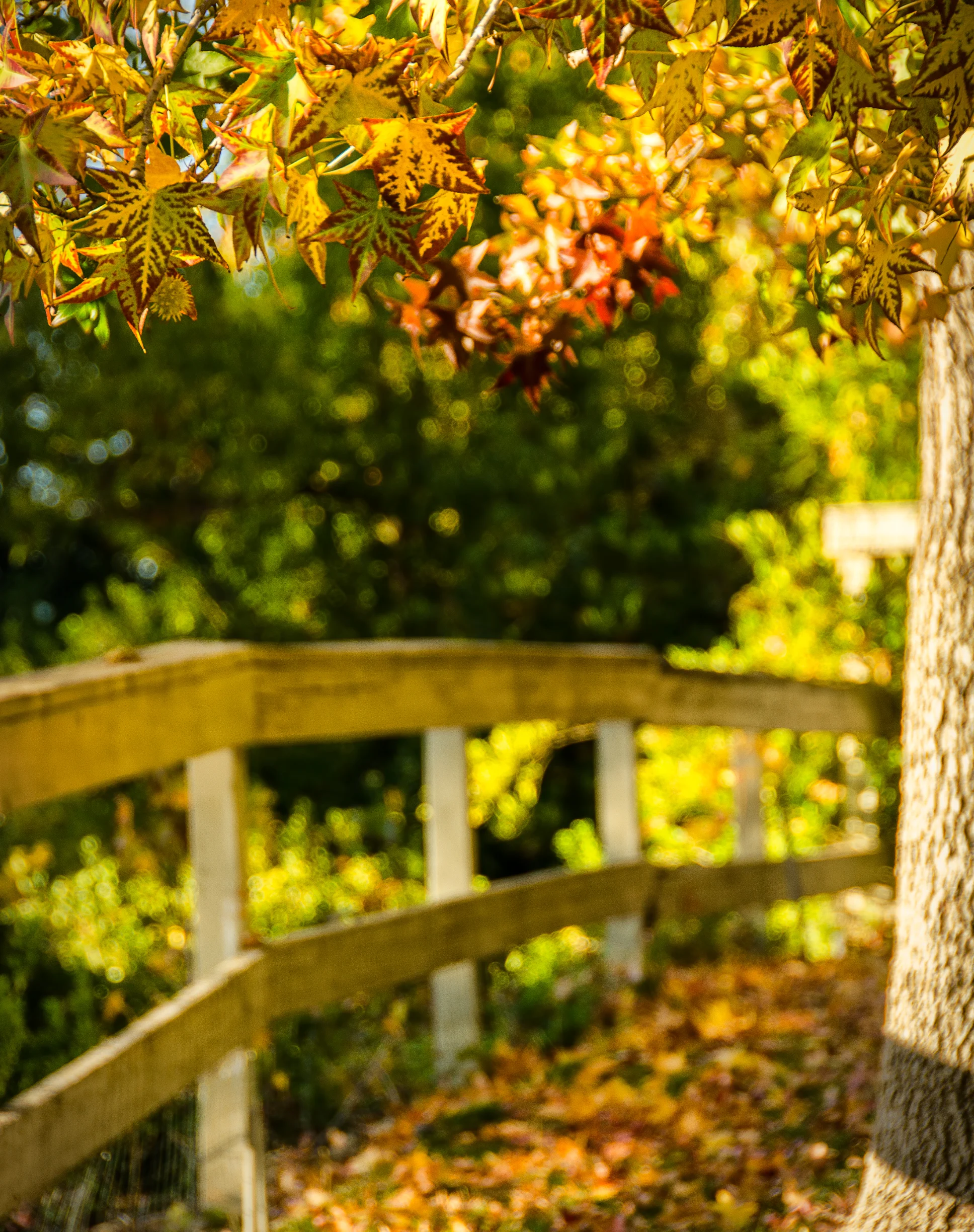
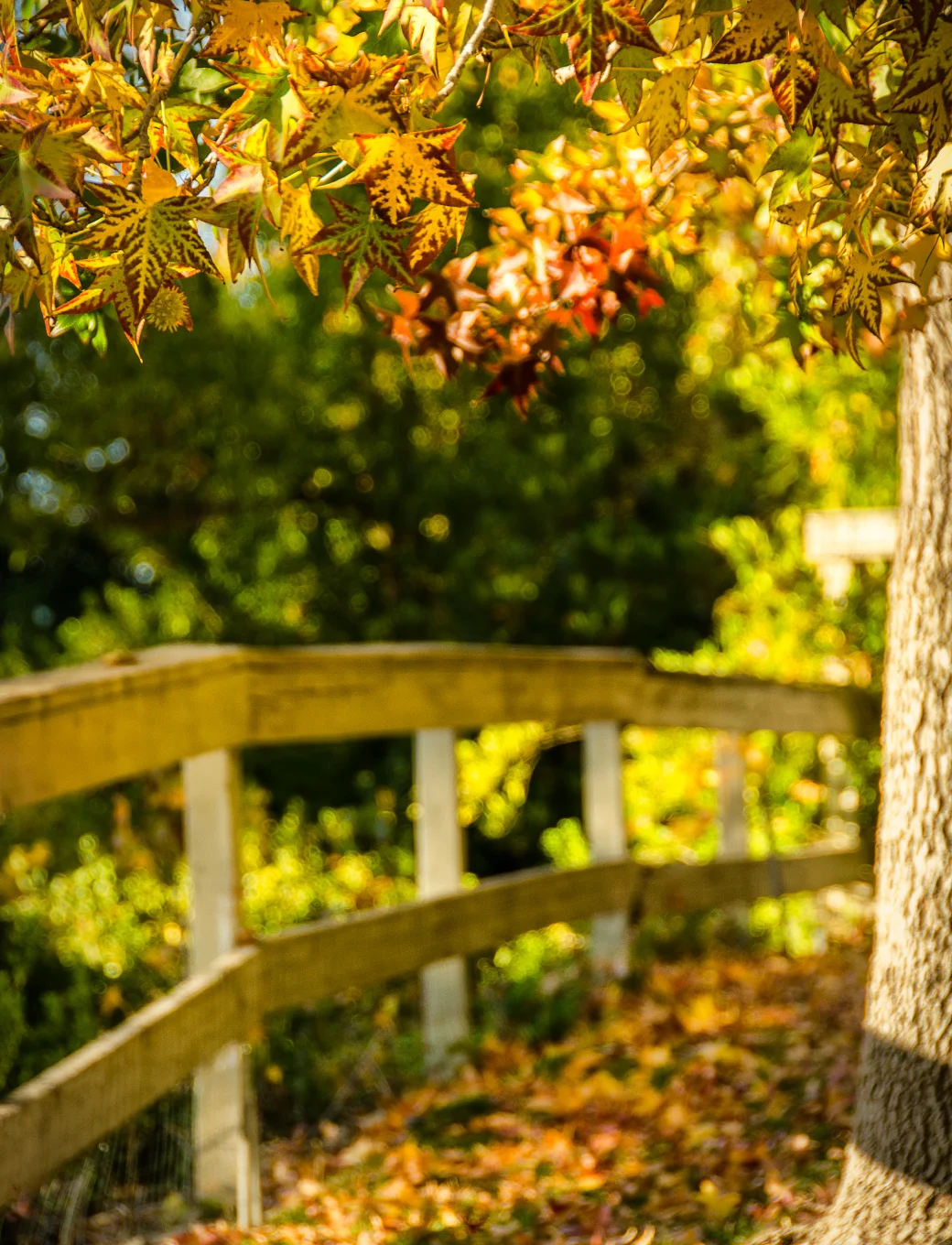
    Had to get out of the house for a bit today just to refresh the brain so got in my car and headed over to Peter Strauss Ranch off Mulholland in the middle of the Santa Monica Mountains and found a few things that, well, definitely helped me air out the ol’ noggin’. Seemed like they might make some pretty decent Autumn-themed backgrounds and wallpapers for your iOS devices, so why not…here they are.

    Simply right-click and ‘Save As’ or if you’re on your iOS device, just hold down and choose ‘Save to Camera Roll’ and there you go. Again, I only format for iOS because that’s what I use, but if enough of you request for other formats, I’ll be happy to provide those as well. Anywho…Happy Fall Y’all!

     fell on mulholland for iPhone 4/4s. Wasim Muklashy Photography. Calabasas, California.

     Fell On Mulholland for iPhone 5/5s. Wasim Muklashy Photography. Calabasas, California.

     fell on mulholland for iPad Mini_Non Retina. Wasim Muklashy Photography. Calabasas, California.

     fell on mulholland for iPad Mini Retina. Wasim Muklashy Photography. Calabasas, California.

     fell on mulholland for iPad 3/4. Wasim Muklashy Photography. Calabasas, California

     had to get out for iPad Mini_Non Retina. Wasim Muklashy Photography.

     had to get out for iPhone 4/4s. Wasim Muklashy Photography.

     had to get out for iPhone 5/5s/5c. Wasim Muklashy Photography.

     had to get out for iPad Mini Retina. Wasim Muklashy Photography.

     had to get out for iPad 3/4. Wasim Muklashy Photography.

  • My images done showed up on iPhone cases!

    My images done showed up on iPhone cases!

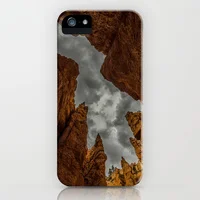
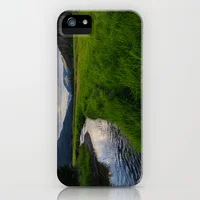
    Caseiphone5 j Caseiphone5 j Caseiphone5 j
    But only cuz I put them there…

    Earlier in the week, I passed along a few iPhone wallpapers with that parallax dynamic madness in celebration of the iOS7 release, and now that the new iPhone itself has been released today, figured why not…I’ve gone to Society6 and done some fancy shmancy cases using some of my photographs you’ve seen on these pages and on my Google Plus page to protect them buggers!

    Oh, and if you use this link to order before September 22, you’ll get free shipping…

    Ok, that’s about as much shameless self-promotion as I feel even mildly comfortable with, so I’ll back off…for now…

    …and the next part of the 3 National Parks, 3 States, 2 weeks, 1 Crap Bag story coming early next week…

  • Happy iOS 7 Day! Here’s A Fresh Wallpaper For That Parallax iPhone Action!

    Happy iOS 7 Day! Here’s A Fresh Wallpaper For That Parallax iPhone Action!

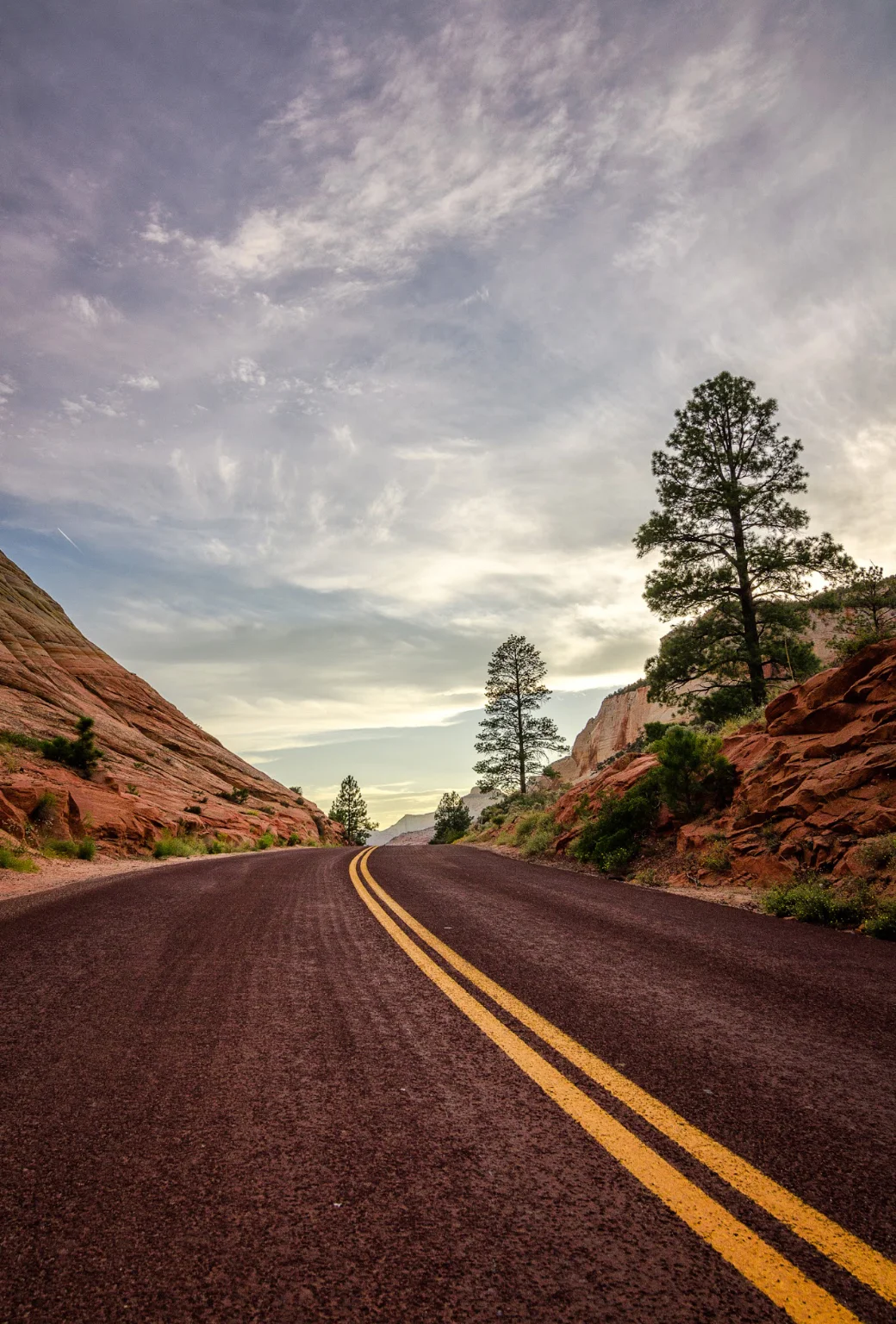
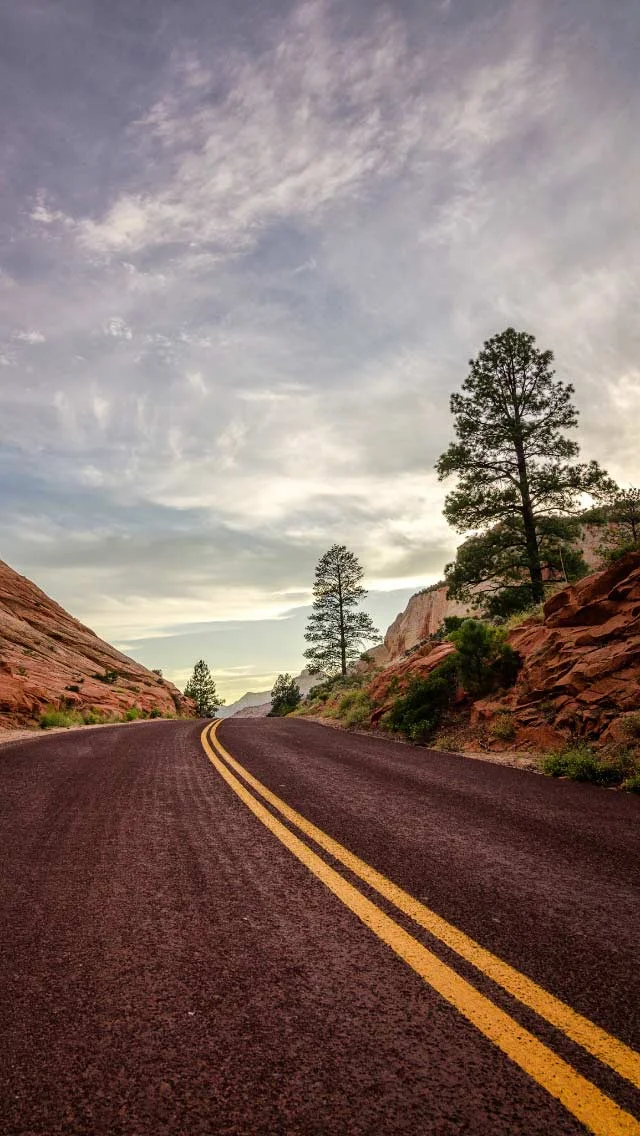
    Zion National Park, Utah. Wasim Muklashy PhotographySo to continue in what I hope to be an ongoing tradition (all depends on how my memory decides to treat me week by week…), here’s another one optimized for an iPhone background so you can play with all that new iOS 7 dynamic parallax 3D wallpaper psychotica in style. This one’s from Utah, just on the outskirts of Zion National Park on the way to Bryce Canyon National Park. Looked in our rearview mirror as we were driving and I hit the brakes immediately.
    If you missed the latest blog post from yesterday which tells the story of this adventure “3 National Parks, 3 States, 2 Weeks, 1 Crap Bag – Entering The Narrows,” click HERE. It’s the 3rd part in an ongoing series. If you want to start at the beginning, click HERE. (more…)